Activating selected Features during the deployment of a package in Visual Studio 2010 SharePoint Developer Tools
Deployment, Development, Productivity, SharePoint 2010, Tools, Visual Studio 2010By default the new Visual Studio 2010 SharePoint Developer Tools activate all Features from the package that is being deployed. While this is a great productivity feature when you need to quickly deploy something, it might be not the thing that you want while working with larger projects. The alternative available out of the box is not activating Features at all. Where does that takes us? I wrote about it previously. In my previous post I also suggested you could use Post-deployment Commands to activate the Features that you want. But wouldn’t it be just more convenient and intuitive if you could select Features that you want to activate during the deployment process? Proudly presenting: Mavention Activate Selected Features extension.
Mavention Activated Selected Features is a custom extension for the new Visual Studio 2010 SharePoint Developer Tools. Upon installation it adds the Select Features to activate… option to the project menu:
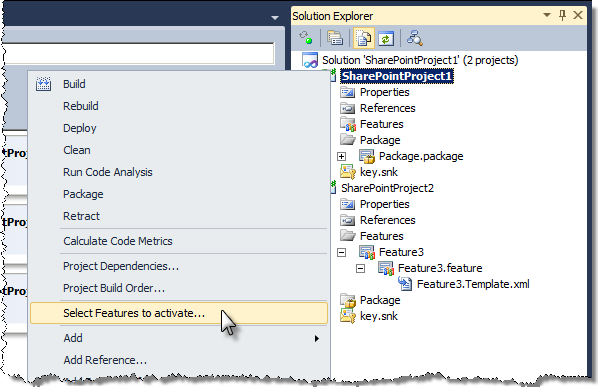
Clicking on that menu option will open a dialog which allows you to select Features that will be activated during the deployment process:
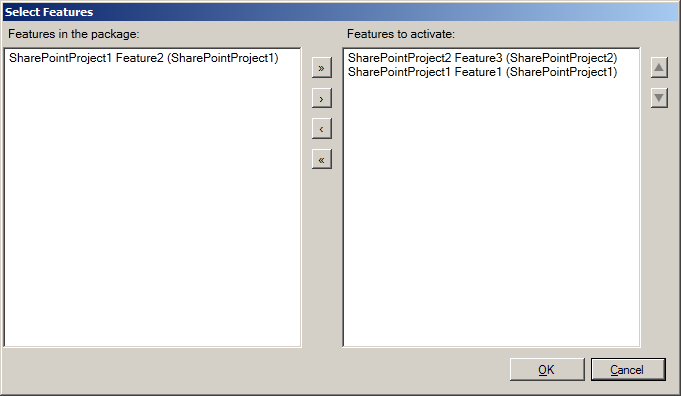
As you might have noticed the dialog shows not only the Features from the current project but all Features included in the current Package, which is exactly what you see in the Package Designer.
The Select Features dialog also allows you not only to select Features which will be activated during the deployment process, but also gives you the ability to set the order in which the Features are going to be activated. This might be important if you have for example a hidden Feature that depends on another Feature (Activation Dependencies are not supported for hidden Features).
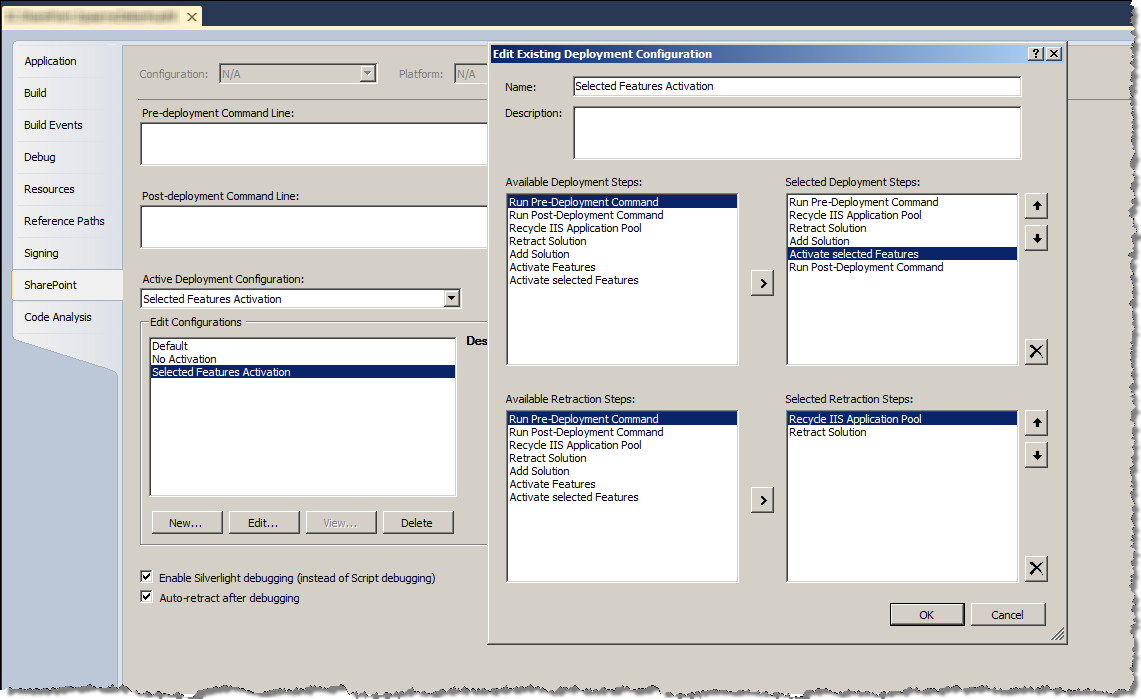
Once you’re ready selecting the Features you can go and configuring the Deployment Configuration in Project Properties.
Mavention Activate Selected Features extension ships with a custom Deployment Step called Activate selected Features which activates Features just as configured in the previous step. In order to use it, you can either create a new Deployment Configuration or include the Activate selected Features step in your existing configuration.
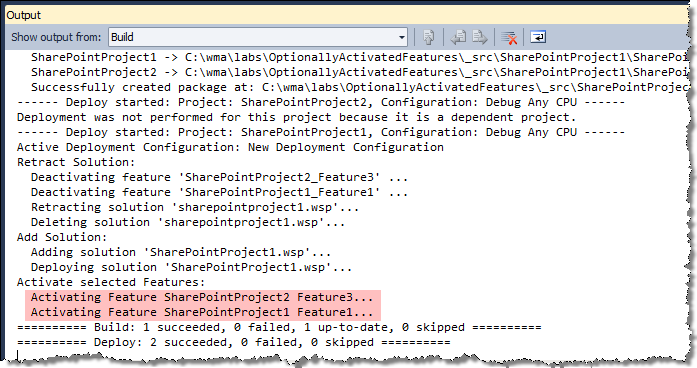
Once you’re done with configuring the deployment process you can click Deploy from the project menu. In the output window you can see that only our two selected Features have been activated but also that they have been activated in exact same order as specified in the Select Features dialog.
Mavention Activate Selected Features is a free extension for the new Visual Studio 2010 SharePoint Developer Tools. This is the first – beta release of the extension. Both final release and the source code will be soon available as a part of the Community Kit for SharePoint: Development Tools Edition (CKS:DEV) toolset.
Download: Mavention Activate Selected Features from Visual Studio Gallery (51KB, VSIX)


May 5th, 2010 at 11:23 am
[...] Dit blogartikel was vermeld op Twitter door Waldek Mastykarz, Planet SharePoint. Planet SharePoint heeft gezegd: Waldek Mastykarz: Activating selected Features during the deployment of a package in Visual Studio 2010 # http://planetsharepoint.org/1a993e [...]
May 5th, 2010 at 1:32 pm
again, was wondering why this wasn't just out of the box ;-) AWESOME!
May 5th, 2010 at 10:07 pm
@Jeremy: thanks man. Oh and don't forget to ping me if you have any feedback :D
June 17th, 2010 at 3:01 pm
I get this error by Clicking "Select Features to activate…" button:
Unhandled exception occurred while calling method 'configureFeaturesActivationMenuItem_Click' of type 'Mavention.VisualStudio.SharePoint.ActivateSelectedFeaturesProjectExtensions, MaventionActivateSelectedFeatures.Implementation, Version=1.0.0.0, Culture=neutral, PublicKeyToken=null'. Exception: System.ArgumentNullException. Message: Value cannot be null.
Parameter name: source
June 23rd, 2010 at 11:35 am
Hey Mihail, i am having same problem with this component, is complaining about the PublicKeyToken, so i checked my token value in the template.xml of the unique featurei have in the project, qich by the way was full O O, i will recheck everything, let's see if we can find the error.
Cheers!!
September 17th, 2010 at 6:45 pm
I am getting following error…
Unhandled exception occurred while calling method 'configureFeaturesActivationMenuItem_Click' of type 'Mavention.VisualStudio.SharePoint.ActivateSelectedFeaturesProjectExtensions, MaventionActivateSelectedFeatures.Implementation, Version=1.0.0.0, Culture=neutral, PublicKeyToken=null'. Exception: System.ArgumentNullException. Message: Value cannot be null.
Parameter name: source
October 15th, 2010 at 1:13 pm
Great idea for extension. Too bad it does not work :(
I am receiving the same exception as Michail and Sachin when clicking 'Select features to activate'. Any chance that you could check and fix this problem? Or maybe you could just post the source code, so we could diagnose and fix the problem for ourselves?
November 2nd, 2010 at 12:16 am
Dear Waldek,
I took the liberty of analyzing your vsix package 'Activating Selected Features'. It turns out there is a bug in method FillFeaturesPicker from class FeaturesPickerDialog. You miss checking selectedFeaturesIds for null before running Count(). This throws an exception when there is no Mavention_FeaturesSelectedForActivation project property specified. Here is a proposed version after the fix:
private void FillFeaturesPicker(IEnumerable featuresFromPackage, IEnumerable selectedFeaturesIds)
{
List source = new List(featuresFromPackage);
List list2 = null;
if (selectedFeaturesIds != null)
{
list2 = new List(selectedFeaturesIds.Count());
using (IEnumerator enumerator = selectedFeaturesIds.GetEnumerator())
{
Func predicate = null;
Guid featureId;
while (enumerator.MoveNext())
{
featureId = enumerator.Current;
if (predicate == null)
{
predicate = delegate(SharePointProjectFeature f)
{
return f.Feature.Id.Equals(featureId);
};
}
SharePointProjectFeature item = source.Cast().Where(predicate).FirstOrDefault();
if (item != null)
{
list2.Add(item);
source.Remove(item);
}
}
}
}
this.featuresPicker.SelectedItems = list2;
this.featuresPicker.AvailableItems = source;
this.featuresPicker.SelectedItemsLabel = "Features to activate:";
this.featuresPicker.AvailableItemsLabel = "Features in the package:";
}
It would be great, if you could fix the code and repost the package on code gallery, as the extension is highly useful.
Best Regards
November 2nd, 2010 at 7:21 am
@El Topo: Thank you for sending the fix. I will try to add the fix as soon as possible and release a new version.
November 5th, 2010 at 10:58 am
[...] I’ve just published a new version of the Mavention Activate Selected Features extension with a bugfix for the issue that occurred while trying to open the dialog with new SharePoint projects. [...]
November 25th, 2010 at 9:55 am
Hi
Thanks for this awesome extension! It's a lifesaver when having features with featurereceivers which adds content on activation ;) Normally the content would be add x times the feature was activated…
BR
/Martin
February 1st, 2012 at 1:32 pm
Thanks man, this really helped me out!!!
Only thing: In the Project context menu I see "Menu Command" as title instead of the correct title :) Took me a second longer to find it :)
February 4th, 2012 at 3:18 pm
@Roland: You're welcome. The 'Menu Command' thingy is a Visual Studio bug. Hope it will get fixed in 11.