Dynamically loading JavaScript from within Sandbox
SharePoint 2010 ships with the Sandbox capability that allows you to isolate custom code and run it in a safe manner. And while it offers you some great possibilities it also has some limitations as pointed recently by Wictor. One of such limitations is no access to the Page.ClientScript which is being used to register JavaScript scripts from within Web Parts. Find out how you can work around this limitation using standard capabilities of the SharePoint 2010 framework.
When the Manager is gone
Often, when developing custom Web Parts, you use the Page Script Manager to register custom JavaScript scripts with the Page. By registering scripts using the Script Manager instead of doing it manually, you can ensure that specific script will not be loaded multiple times. Also, when inserting multiple instances of the same Web Parts on the page, you can ensure that the JavaScript will not collide or override each other.
Unfortunately, as Wictor pointed out in his article, the abstraction layer of Sandboxed Solutions in SharePoint 2010 makes it impossible for you to leverage the Script Manager functionality to register your JavaScript scripts with the Page. So what are the other options that SharePoint has to offer to work around this limitation?
It’s called ECMA
As you might know, SharePoint 2010 ships with a brand new client script API called ECMAScript. Not only it’s being heavily used by SharePoint itself for its new dynamic UI but it also provides some public functions that can be used in custom solutions.
One of the namespaces in the supported part of the ECMAScript is SP.SOD – Script On Demand, which – as you might’ve guessed – allows you to dynamically load JavaScript scripts right when you need them.
Although all the pieces required to dynamically load JavaScript scripts on demand are present in the ECMAScript API, there is no single function that you can call to get the job done. Nevertheless by using the standard API provided with SharePoint 2010 you can create a wrapper that can make it easier for you to dynamically load JavaScript scripts.
Script On Demand
SharePoint 2010 ships with a mechanism that allows you to register external script files with the Page and delay executing functions from those files until the script files have been loaded. By default SharePoint will add the functions creating an execution queue. Once the script has been loaded and notified SharePoint, all functions stored in the queue will be executed. Although this default behavior might not exactly be what you’re looking for, it contains all the pieces that you to load external script files on demand.
In order to load a script on demand, the first things you need to do is to register the script with the page. You can do this using the registerSod function:
SP.SOD.registerSod('mv-myscript.js', '/Style Library/Mavention/mv-myscript.js');The important thing is that the script file has to end with calling the notifyScriptLoadedAndExecuteWaitingJobs function which will notify the SOD manager that the script with the give key has been loaded and all functions in the queue can be executed:
// js file contents

SP.SOD.notifyScriptLoadedAndExecuteWaitingJobs('mv-myscript.js');
As I mentioned before there is no single function provided with the ECMAScript Class Library that allows you to load a SOD script and execute a function right after the script has been loaded. You can however easily create a simple wrapper around the existing functions to make this possible.
The following code snippet is a sample function that allows you to execute a JavaScript function stored in an external JavaScript file, right after that file has been loaded:
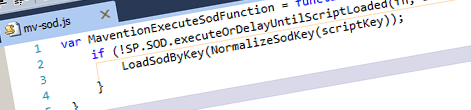
var MaventionExecuteSodFunction = function(fn, scriptKey) {
    if (!SP.SOD.executeOrDelayUntilScriptLoaded(fn, scriptKey)) {
        LoadSodByKey(NormalizeSodKey(scriptKey));
    }
}
The MaventionExecuteSodFunction function is a simple function that takes two parameters: the function that should be executed when the external script file has been loaded and a key of the previously registered Script On Demand (SOD) script. The great thing about this function is, that if the script has already been loaded the function will be executed immediately without reloading the script!
Having that in place you are ready to proceed to the last step.
Calling external JavaScript functions
There is no better way to explain the working of a piece of code than a practical exercise. In our sample scenario, let’s create a simple Web Part with a button that will call the showMaventionMessageBox function after clicking a button. The showMaventionMessageBox function will come from an external JavaScript file that we will load on demand.
The following code snippet presents the external JavaScript file called mv-myscript.js which contains the showMaventionMessageBox function:
var showMaventionMessageBox = function() {
    alert('Hello from Mavention!');
}

SP.SOD.notifyScriptLoadedAndExecuteWaitingJobs('mv-myscript.js');
This file is deployed to the Style Library.
First let’s create our Sandboxed Web Part:
public class MyWebPart : WebPart
{
    protected IButtonControl MyButton;

    protected override void CreateChildControls()
    {
        base.CreateChildControls();

        MyButton = new Button
        {
            Text = "Click me",
            ID = "MyButton"
        };
        Controls.Add((Button)MyButton);
    }
}
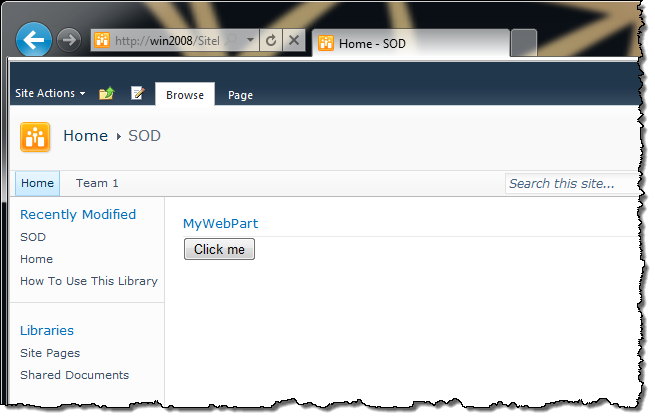
Which will give us the following result:
The next step is to register our external JavaScript script as a SOD script which will allow us to load in on demand later on. We can do this by adding a JavaScript snippet to the rendered Web Part output:
protected override void RenderContents(HtmlTextWriter writer)
{
    writer.AddAttribute(HtmlTextWriterAttribute.Type, "text/javascript");
    writer.AddAttribute(HtmlTextWriterAttribute.Src, String.Format("{0}/Style Library/mavention/js/mv-sod.js", SPContext.Current.Site.ServerRelativeUrl.TrimEnd('/')));
    writer.RenderBeginTag(HtmlTextWriterTag.Script);
    writer.RenderEndTag(); // script

    base.RenderContents(writer);

    writer.AddAttribute(HtmlTextWriterAttribute.Type, "text/javascript");
    writer.RenderBeginTag(HtmlTextWriterTag.Script);
    writer.WriteLine(String.Format("SP.SOD.registerSod('mv-myscript.js', '{0}{1}');",
        SPContext.Current.Site.ServerRelativeUrl.TrimEnd('/'),
        "/Style Library/Mavention/mv-myscript.js"));
    writer.RenderEndTag(); // script
}
First we need to include the JavaScript file that contains the MaventionExecuteSodFunction function that we discussed earlier. Because the only piece we control in this scenario is the Web Part we need to explicitly include it, but if you work with a custom Master Page you could include it there as well to minimize the load and avoiding loading the script multiple times.
The second piece of the JavaScript is responsible for registering the SOD script which will allow us to load it on demand later on.
With that in place we are ready to configure the click event of the button and link it to the showMaventionMessageBox function.
There are a number of ways how you can register a JavaScript function with the click event of a button, but probably the best one is the one using progressive enhancement, meaning associating the event handler from JavaScript itself rather than using the inline onclick attribute.
The following code snippet shows how you can call the showMaventionMessageBox function after clicking the button:
(function () {
    var button = document.getElementById('button_ClientID');
    if (button) {
        Sys.UI.DomEvent.addHandler(button, 'click', function (e) {
            MaventionExecuteSodFunction(function () { myFunction(); }, 'sod-script-key.js');
            e.preventDefault();
        });
    }
})();
The first thing you need to do is to get a reference to the element to which you want to attach the event handler. Once you have it you can attach the event handler using the Sys.UI.DomEvent.addHandler function which is a part of the Microsoft ASP.NET AJAX framework. In the event handler function you then call the MaventionExecuteSodFunction function. The last thing that has to be done is to call the preventDefault function on the event handler’s eventArgs (e) to prevent the click event of the button from causing a postback. Because we’re working in the scope of a Web Part and we don’t want to mix local variables between all the different instances, we wrap all of it in an anonymous function which we execute directly.
Let’s finish our Web Part by adding the above code snippet to its RenderContents function:
protected override void RenderContents(HtmlTextWriter writer)
{
    writer.AddAttribute(HtmlTextWriterAttribute.Type, "text/javascript");
    writer.AddAttribute(HtmlTextWriterAttribute.Src, String.Format("{0}/Style Library/mavention/js/mv-sod.js", SPContext.Current.Site.ServerRelativeUrl.TrimEnd('/')));
    writer.RenderBeginTag(HtmlTextWriterTag.Script);
    writer.RenderEndTag(); // script

    base.RenderContents(writer);

    writer.AddAttribute(HtmlTextWriterAttribute.Type, "text/javascript");
    writer.RenderBeginTag(HtmlTextWriterTag.Script);
    writer.WriteLine(String.Format("SP.SOD.registerSod('mv-myscript.js', '{0}/Style Library/Mavention/js/mv-myscript.js');",
        SPContext.Current.Site.ServerRelativeUrl.TrimEnd('/')));

    writer.WriteLine("(function() {");
    writer.WriteLine(String.Format("var button = document.getElementById('{0}');", ((Button)MyButton).ClientID));
    writer.WriteLine(@"if (button) {
    Sys.UI.DomEvent.addHandler(button, 'click', function(e) {
        MaventionExecuteSodFunction(function() { showMaventionMessageBox(); }, 'mv-myscript.js');
        e.preventDefault();
    });
}");
    writer.WriteLine("})();");

    writer.RenderEndTag(); // script
}
All of the above should give you the following result:
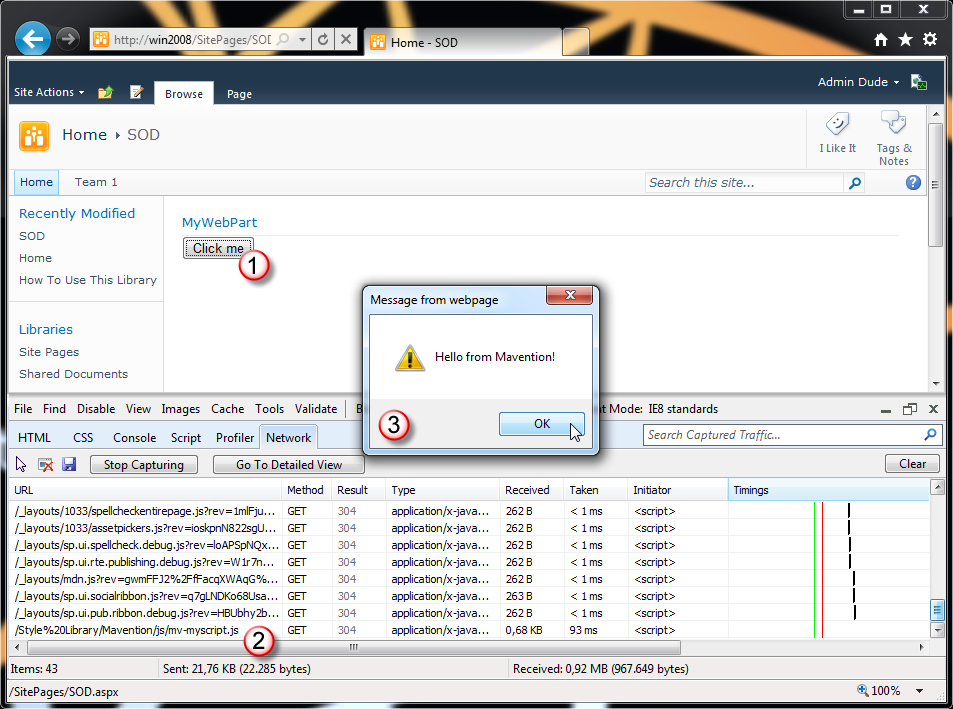
The page loads. The mv-myscript.js script file hasn’t been loaded yet. You click on the Click me button (1). The mv-myscript.js file is being loaded on demand (2) and the message box from the external function appears on the screen (3).
Summary
SharePoint 2010 ships with the new Sandbox which allows you to isolate custom code and run it in a safe manner. Unfortunately Sandbox has some limitations among which the inability to leverage the Page Script Manager to load register external script files: something which is common in custom Web Parts development. Luckily using the standard capabilities of the SharePoint 2010 ECMAScript Class Library you can not only register external files with the Page but also load them on demand which improves the overall performance of the Page.
Technorati Tags: SharePoint 2010,Sandbox,JavaScript