Dynamically resizing images with Mavention Smart Images
A picture is worth a thousand words. In many situations images help illustrate and explain thoughts. Without images the Web would be boring and colorless. And while we all are convinced about the power of image and how it enhances telling a story, it is surprising how complex it is to get it right on the Web. Many large images on your website make it download and display slowly. No matter how great the content is, the odds are high that your visitor will not take the time to wait for it. Large images is not something specific to SharePoint. Many Content Management Systems suffer from not being able to automatically provide resized images. And while in many cases there are solutions to that, they are either complex, expensive or both. However the great thing with SharePoint 2010 is, that using its extensibility capabilities you can easily change this…
Imagine…
Let’s have a look at an image inserted on a page using the standard functionality provided with SharePoint 2010.
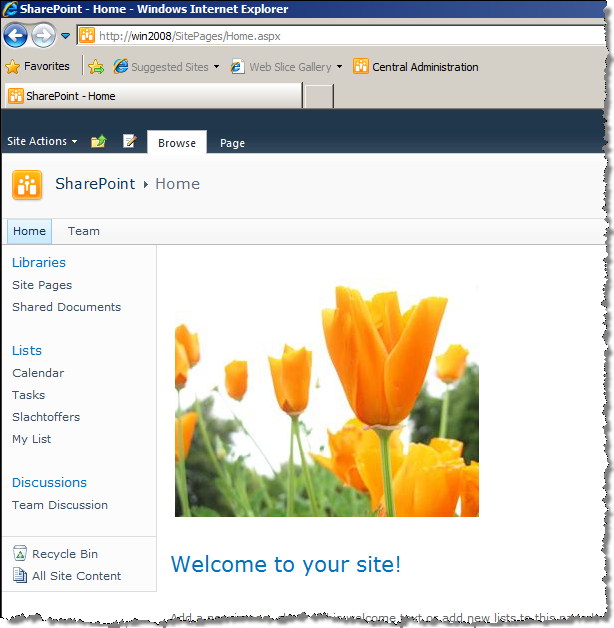
Look all right, doesn’t it? If you however look beneath the hood you should notice the problem:
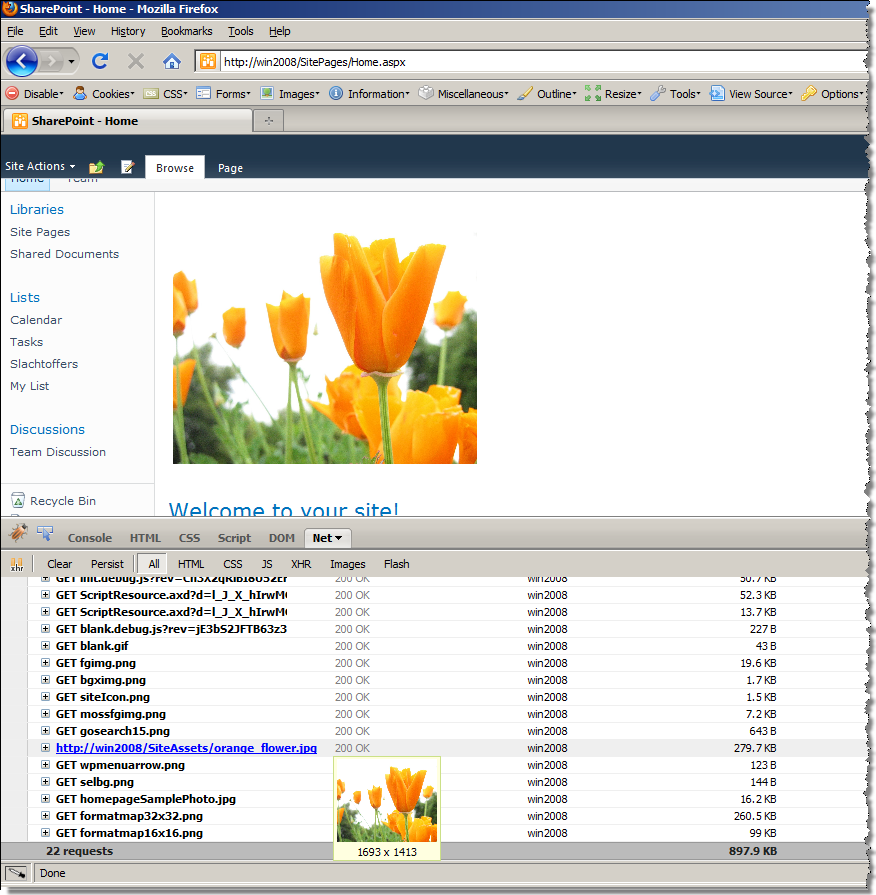
While the picture displayed on the page is 304px x 254px the original picture is loaded: 1693px x 1413px 280KB. Although you can resize a picture using the standard SharePoint functionality, all it does is, it includes the new size as in-line CSS styles. On each request the original picture is requested and resized by the browser. Including multiple of such pictures on your page increases the overall page size and makes the page load slower as more data has to be loaded by the browser.
You could of course resize the image to get this done correctly. You would first upload the original photo, fit it on the page, note the desired dimensions, open the picture in your favorite image editor, resize it, upload it to SharePoint and finally add it on the page. Can you imagine doing this every time you want to insert an image?
The answer is: you shouldn’t. This is where Mavention Smart Images come really useful.
Mavention Smart Images
Mavention Smart Images is a custom Solution that allows you to replace your original picture with a resized one on-the-fly without any manual work. This makes it really convenient to work with images and allows you to optimize your pages so that they can be loaded faster.
After installing the Solution a new Web Application Feature is installed in your Farm. Activating this Feature will enable support for dynamically resized images.
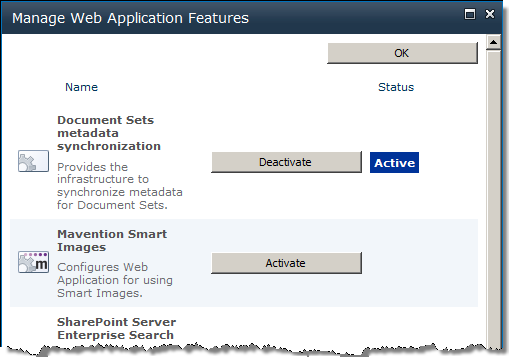
The next step is to activate the User Interface which will allow you to replace the URL of the original image with the URL of the Smart Image. In order to enable it you have to activate the Mavention Smart Images Site Collection Feature:
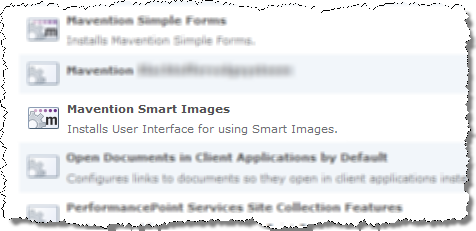
After you activate the Site Collection Feature you can start working with your images. As an example let’s optimize our flower image from the homepage.
Working with Mavention Smart Images
If you go to the Edit Mode and select an image, you will notice a new option in the Picture Tools on the Ribbon. The Convert to Smart Image button allows you to replace the original URL of your image with a URL that dynamically generates a resized version of your image.
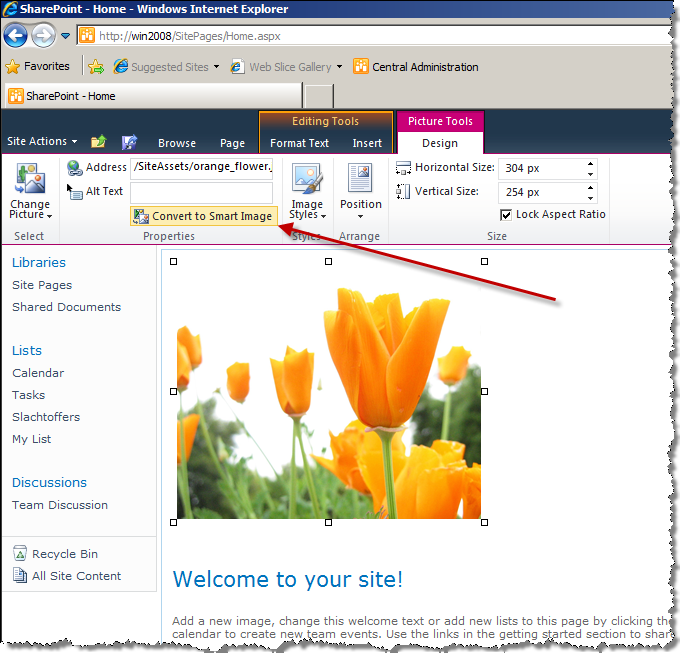
After you click the Convert to Smart Image button, the image’s address changes into a dynamic URL. For example:
/SiteAssets/orange_flower.jpgbecomes:
/image.png?img=/SiteAssets/orange_flower.jpg&w=304px&h=254px&f=jpg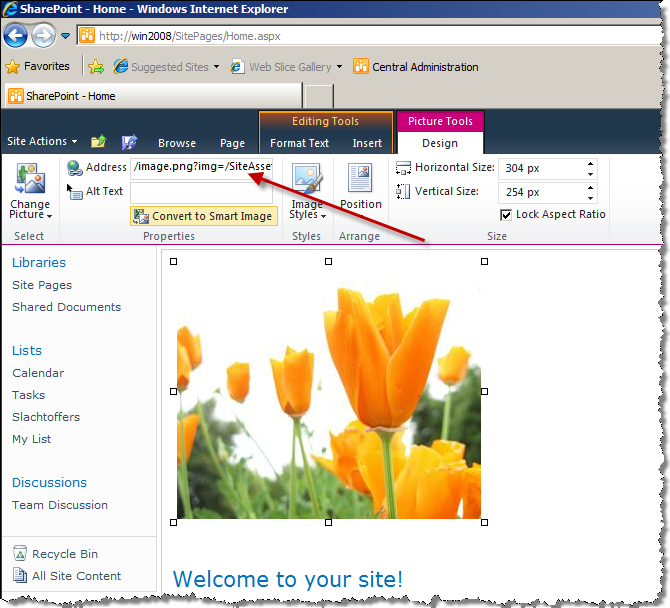
Let’s have a closer look at the generated URL. The img parameter contains a server-relative URL to the image that you want to resize. The w and h parameters specify respectively the width and height of the resized image. This is very cool since you can specify the new dimensions either absolutely (ie. using both width and height) or relatively by providing either the width or the height. Additionally you can even use percentages to resize the image!
The last parameter called f specifies the output format of the image. Supported formats are png, jpg, jpeg and gif. Depending on your scenario you might want to use different format. The best practice is to check which one of the provides the best quality/size ratio for your image.
So let’s have a look at the results of our work:
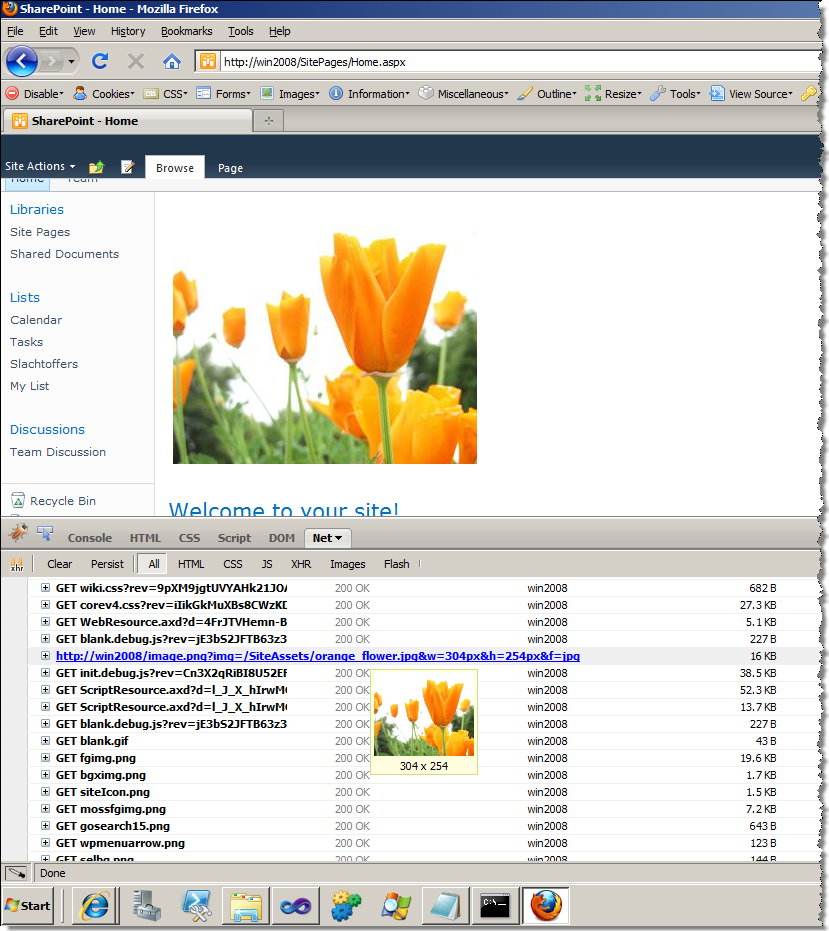
Notice the dimensions of the loaded image but also the size: 16KB instead of 280KB. See the difference?!
Summary
Mavention Smart Images is a great solution if you work a lot with images on your SharePoint website. In fact it is something that simplifies your daily work as a content manager on your corporate Internet-facing website. Using Mavention Smart Images you can dynamically resize and optimize your images without any manual work: Make SharePoint work for you!
Download: Mavention Smart Images (11KB, WSP) from CodePlex
Technorati Tags: SharePoint,SharePoint 2010