Imtech Run PowerShell Script Deployment Step
In my previous article I wrote about extending the Visual Studio SharePoint development tools. Now it’s time for the first extension: Imtech Run PowerShell Script Deployment Step.
Deploying solutions using the Visual Studio SharePoint development tools
The new Visual Studio SharePoint development tools help you not only with creating solutions but also with deploying them to your SharePoint server. If you are new to the tools there is a whole section on MSDN dedicated to Packaging and Deploying SharePoint Solutions using the new tools.
The coolest thing about the Deployment Configurations is that they are fully customizable: not only you can define your own configurations, but you can also create custom Deployment Steps.
Executing PowerShell scripts in the Deployment process
Out of the box the Visual Studio SharePoint development tools ship with a number of Deployment Steps. These steps cover the most common tasks like recycling Application Pool, deploying Solutions and activating Features.
One of the new things in SharePoint 2010 is support for Windows PowerShell. You can use PowerShell to manage your SharePoint Farm but it can be also extremely useful also during the development process. Unfortunately, in the current release of the development tools, there is no support for executing PowerShell scripts as a part of the Deployment process.
Introducing: Imtech Run PowerShell Script Deployment Step
Imtech Run PowerShell Script Deployment Step is a custom extension for the Visual Studio SharePoint development tools. After installation it adds a new Deployment Step called Run PowerShell Script:
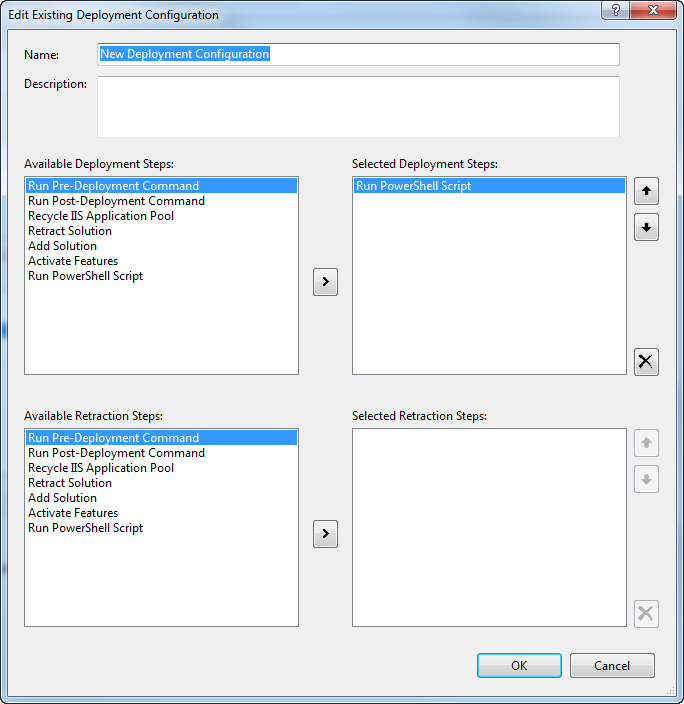
In your Deployment Configuration you can select either one or multiple PowerShell Scripts to be executed during the deployment. Just pick a Run PowerShell Script task for every script that you want to execute.
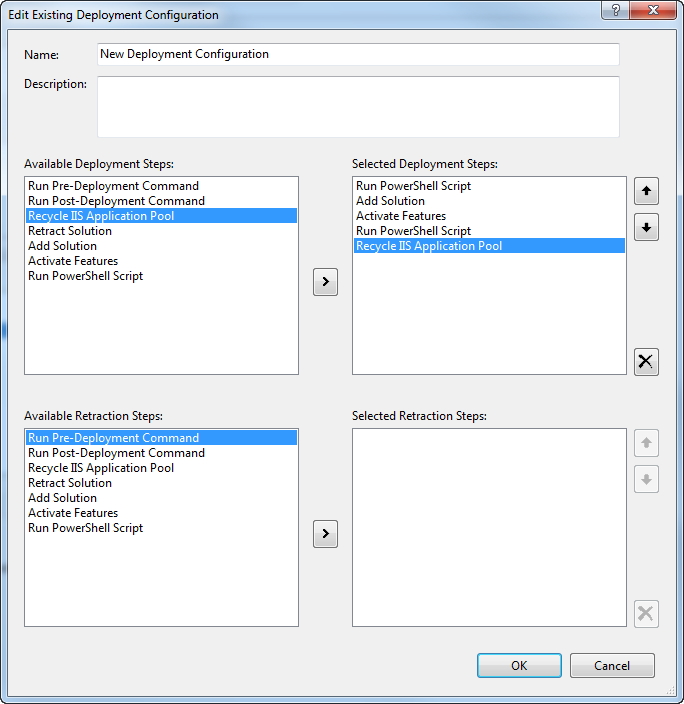
After you confirmed the Deployment Configuration, when you select the project in the Solution Explorer, you will see two new properties in the Properties Window: one for every PowerShell script you selected in the Deployment Configuration:
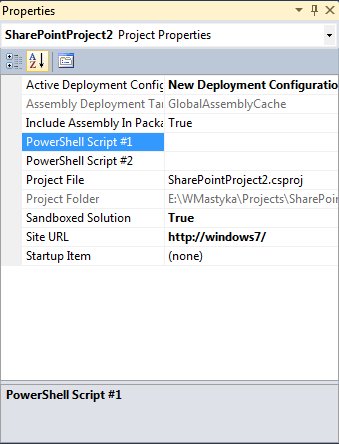
Using these properties you can define which PowerShell scripts should be run for every task.
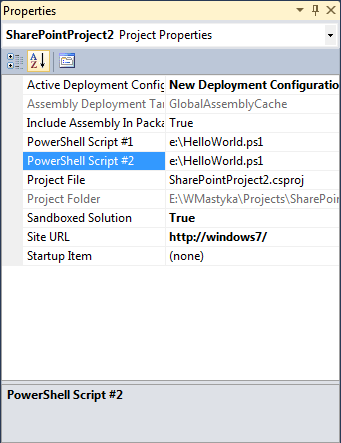
Important The PowerShell script path that you enter in the Properties Window is not bound to a specific PowerShell Deployment Task. The number of the task that you see in the Properties Window simply says: “The first/second/third PowerShell script is…”. In order to change the order of the PowerShell scripts you have to change the value of the specific properties.
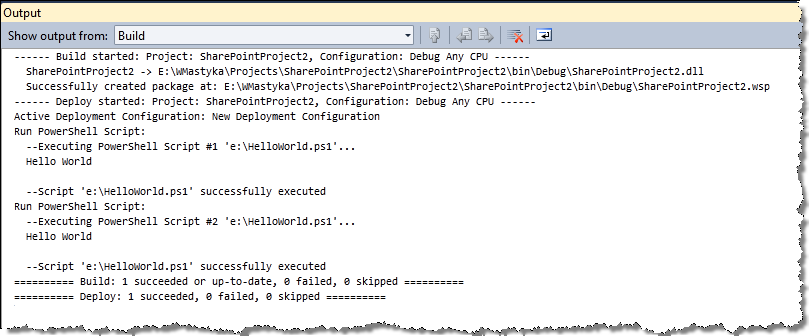
Finally when you choose Deploy from the Project menu, the Deployment Configuration will be executed and the PowerShell scripts, that you specified in the Properties Window will be run:
Installing the Imtech Run PowerShell Script Deployment Step
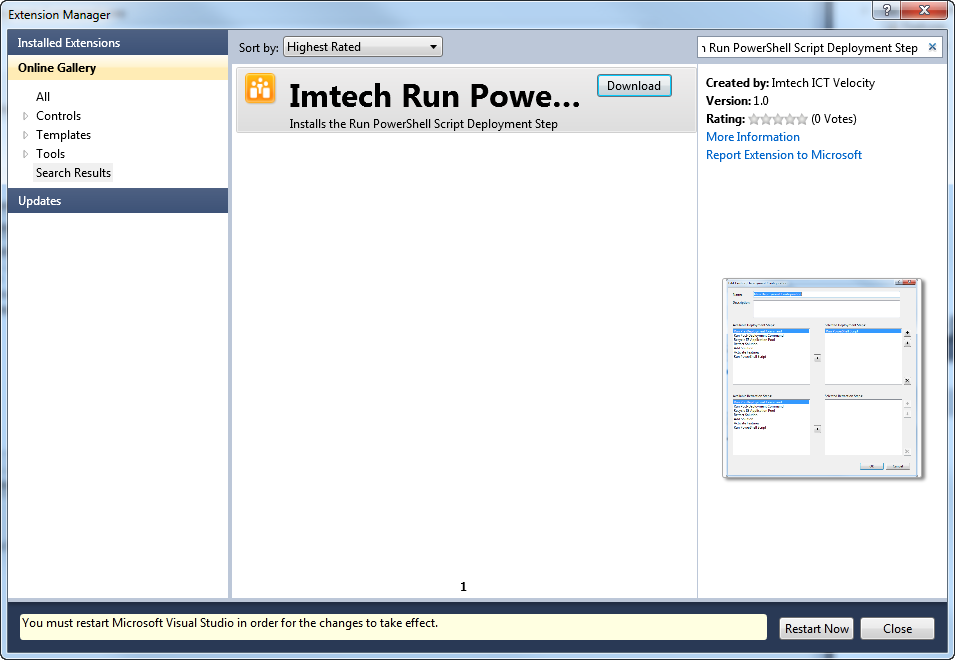
Imtech Run PowerShell Script Deployment Step is available as a Visual Studio Extension. You can either download it from the Visual Studio Gallery or from your Visual Studio choose Tools > Extension Manager, and search for Imtech Run PowerShell Script Deployment Step:
Technorati Tags: SharePoint 2010,Visual Studio 2010