
Inconvenient creating Publishing Pages in sites with Managed Navigation
Managed Navigation is the answer
Since the introduction of Web Content Management capabilities as a part of the SharePoint platform in 2007 many customers were asking for more flexibility in building URLs and decoupling site navigation hierarchy from the physical structure of the website. And although it was possible to a certain extent by building custom solutions, none of them were really integrated with SharePoint. One of the new capabilities of SharePoint 2013 is Managed Navigation which allows you to define the navigation hierarchy of your website using a taxonomy. For every term you can define which physical page does it point to, what allows you to truly decouple the navigation from the physical structure of your website. This allows not only for more site management flexibility but also offers you the ability to optimize the website for the content authoring process that might be structured differently than what the visitors are seeing on the outside.
Structure without structure
When working with Managed Navigation there are basically two scenarios for where you store the physical content. One is using cross-site publishing and having your website connected to one or more Catalogs. In this scenario the content is stored in one or more Catalogs in other Site Collections and the terms from the Catalogs are pinned to the site’s navigation. Another scenario is to create the Publishing Pages directly in the website and for every page define a Friendly URL (FURL), which will also automatically create a term in the Managed Navigation. In this scenario all pages, despite their hierarchy in the navigation, will be by default created in the Pages Library of the Root Web.
Inconvenient creating Publishing Pages in sites with Managed Navigation
When working with Catalogs, creating content is straight-forward: after all, simplifying the content creation process is one of the main goals of using Catalogs. When creating content in-site however, things get more challenging. SharePoint 2013 offers you the two main ways to create new Publishing Pages: you can either use the New button from the Ribbon or the Add a page option from the Settings menu. 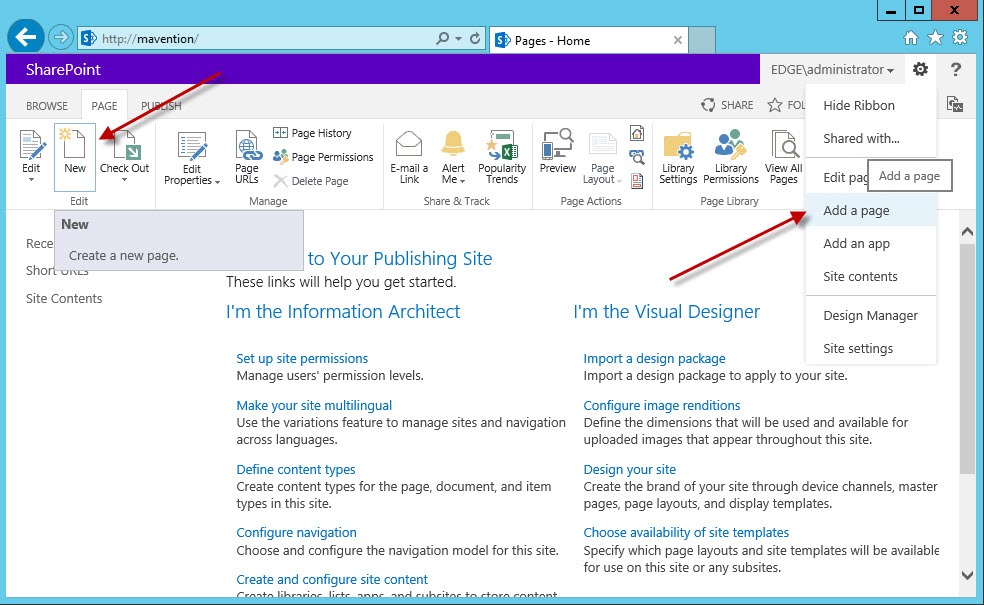 Although both options seem the same, they work differently when it comes to creating Publishing Pages with Managed Navigation. When creating a new Publishing Page using the New button from the Ribbon, no matter the current location in the navigation hierarchy, the page will be always created on the top level. Using the Add a page option however, the new page will be added to the navigation at the same level as the page that the user is currently on.
At this moment it is unclear whether this inconsistent behavior of both the New button and the Add a page option is by design or not, but it’s definitely something to take into account when working with Publishing Pages.
The interesting scenario however, that isn’t covered by either of the options, is when you want to create a subpage. Using the standard SharePoint 2013 functionality, in order to create a new page below the current page, you would first have to create a new page using the Add a page option, then you would have to navigate to Site Settings > Term store management and you would have to move the Term of the newly created page to its proper location. As you can see there is a better user experience to think of with regards to this scenario.
Easier creating Publishing Pages with Mavention New Publishing Page
Mavention New Publishing Page is a SharePoint 2013 solution that simplifies the process of creating Publishing Pages. Upon installation it replaces the standard New button from the Ribbon with a new one that allows you to choose whether you want to create a new page next to the current one (default) or below it (subpage). 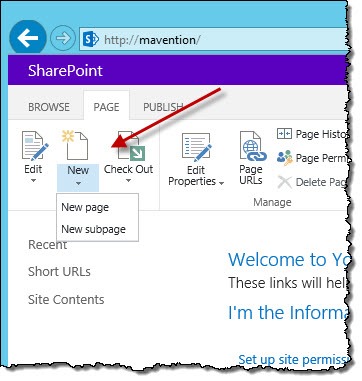 Not only Mavention New Publishing Page simplifies the process of creating subpages by bringing it down to a single click, but it also makes it consistent across the different options available in the SharePoint 2013 user interface.
Summary
One of the new capabilities of SharePoint 2013 is Managed Navigation which allows site managers to decouple the navigation of a website from its physical structure. By default options for creating new Publishing Pages in the SharePoint 2013 user interface are inconsistent. Additionally creating new subpages requires manually manipulating the navigation terms. Mavention New Publishing Pages is a custom solution that simplifies the process of creating subpages and makes the options for creating Publishing Pages consistent. Update March 19, 2014: The download package has been updated to support creating new pages in subsites. Download: Mavention New Publishing Page (12KB, WSP)