Inconvenient PublishingScheduleControl
Expire immediately!
MOSS 2007 allows you to define the publication and expiration date and time for every Publishing Page. As soon as you finish editing the page and save your changes SharePoint will take it over from you and will publish the page on the given date.
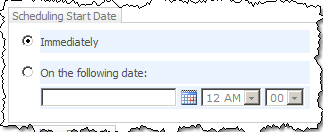
You can provide the publication date and time using the so called Publishing Schedule Control:
A similar control is available to enter the expiration pubDate:
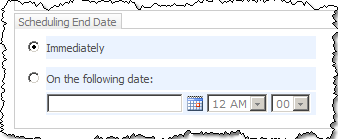
Have you noticed that SharePoint asks you whether you want your page to expire Immediately? Something seems to be wrong here.
SharePoint allows you to set the schedule for a Publishing Page in at least three ways.
First of all you can go to Page > Page Settings and Schedule page. In the schedule section you will find date and time pickers to enter the publication schedule information:
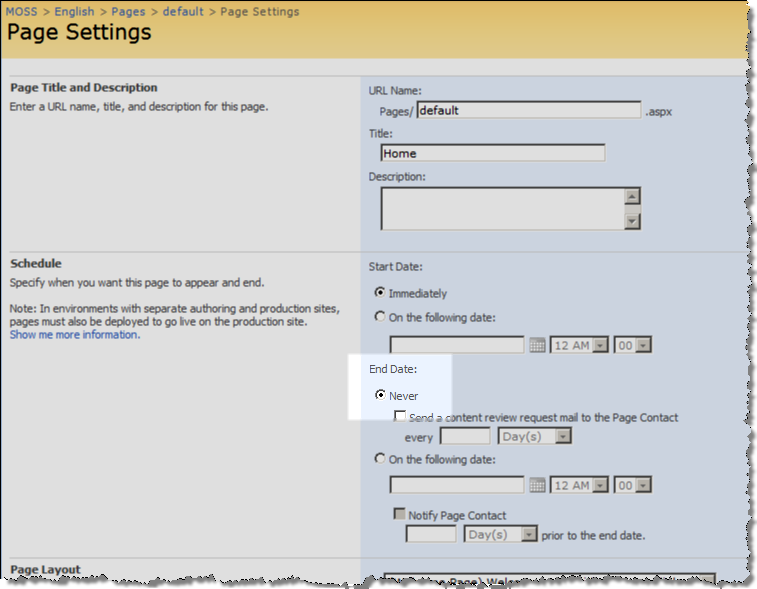
Did you notice that the first option for the End Date says now Never instead of Immediate? Let’s check it in one more place.
Another spot where you can edit the schedule information is the Page Properties page:
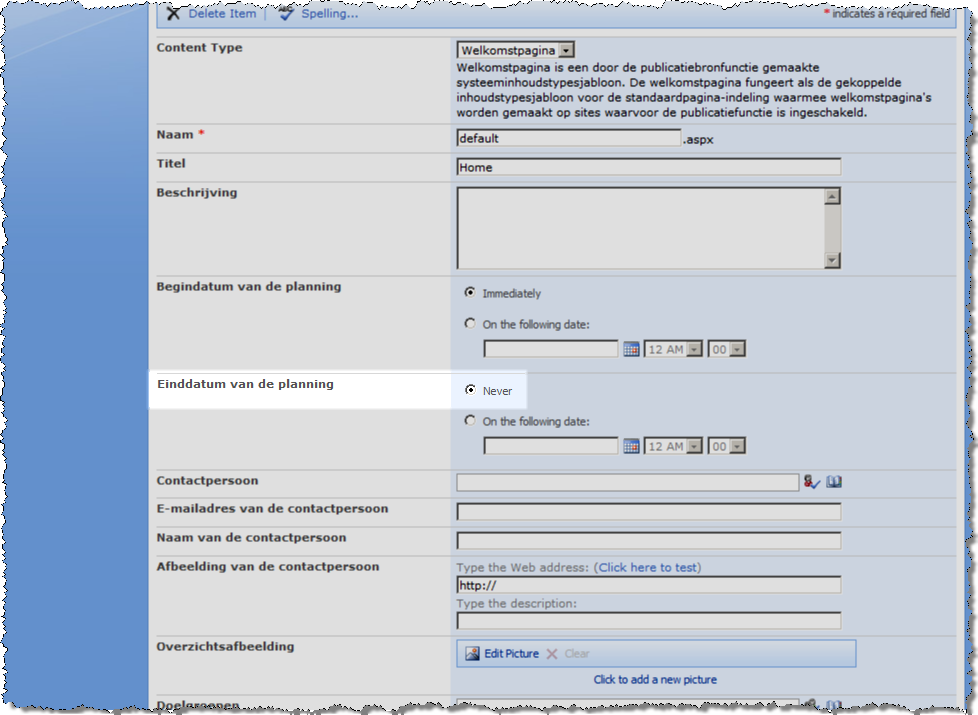
Also here you are able to make your page never expire. So how come the users see the Immediately label while editing the scheduling information through a Page Layout?
Is it that simple?
MOSS 2007 ships with two controls responsible for rendering the schedule picker. There is the PublishingScheduleFieldControl which can be used on Page Layouts and the PublishingScheduleControl which SharePoint uses on the List Forms and on the Page Settings and Schedule page. The PublishingScheduleFieldControl control is nothing more than a wrapper for the PublishingScheduleControl. On page load it retrieves the value from the attached Column and passes it to the PublishingScheduleControl. So how come things get wrong on the Page Layout?
The PublishingScheduleControl has the UseAsEndDate public property (not documented in the MOSS 2007 SDK) which is responsible for rendering the proper label on the first radio button. If it’s a publishing start field it renders Immediately and if it’s a publishing end field it renders Never. As I mentioned the PublishingScheduleFieldControl uses the PublishingScheduleControl as the data input interface. Unfortunately it doesn’t provide any way to set the value for the UseAsEndDate property which therefore remains set to false.
The challenge
When things go wrong in SharePoint I usually try to fix it using the simplest solution possible with as little custom code as I can. The more you develop, the bigger the chance that you will introduce a brand new issue yourself.
So first of all I thought about creating a new Field Control, inheriting from the PublishingScheduleFieldControl, overriding the CreateChildControls method and getting the things right. Using a public property I would make it possible to set the value of the UseAsEndDate property of the underlying PublishingScheduleControl. Unfortunately, the PublishingScheduleFieldControl is sealed so you cannot inherit from it.
Another solution I had in mind was to create a new Field Control which would include all the functionality that the PublishingScheduleFieldControl has and then extend that with my custom UseAsEndDate property and some extra logic in the CreateChildControls method. Unfortunately for me it turned out, that the underlying PublishingScheduleControl is public but doesn’t provide a public constructor. It seemed like I would have to create a new control for this as well… So is it even possible to solve this issue without rebuilding a dozen of SharePoint controls?
The fix
Then I stumbled upon yet another idea: why not use a Control Adapter to set the property correctly? Initially I came up with the following piece of code:
public class PublishingScheduleFieldControlAdapter : ControlAdapter
{
  protected override void CreateChildControls()
  {
    base.CreateChildControls();

    PublishingScheduleControl scheduler = Control.Controls[0] as PublishingScheduleControl;
    if (scheduler != null)
    {
      scheduler.UseAsEndDate = true;
    }
  }
}
It worked but the problem was that it got applied to all PublishingScheduleFieldControls: both for the start and the end date. So how we could distinguish one field type from another? Adding another property is not an option since the PublishingScheduleFieldControl is sealed. We could wrap it in another control and then using the Parent property determine whether we should process it or not. I thought of an easier way though and yet quite elegant one if you ask me.
I extended the code of my Control Adapter as follows:
public class PublishingScheduleFieldControlAdapter : ControlAdapter
{
  protected override void CreateChildControls()
  {
    base.CreateChildControls();

    BaseFieldControl schedulerFieldControl = Control as BaseFieldControl;
    if (schedulerFieldControl.CssClass.Contains("UseAsEndDate"))
    {
      PublishingScheduleControl scheduler = schedulerFieldControl.Controls[0] as PublishingScheduleControl;
      if (scheduler != null)
      {
        scheduler.UseAsEndDate = true;
      }
    }
  }
}
And then changed the PublishingScheduleFieldControl markup in the Page Layout:
<PublishingWebControls:PublishingScheduleFieldControl FieldName="PublishingStartDate" InputFieldLabel="Scheduling Start Date" runat="server" />
<PublishingWebControls:PublishingScheduleFieldControl FieldName="PublishingExpirationDate" CssClass="UseAsEndDate" InputFieldLabel="Scheduling End Date" runat="server" />
And this is the result:
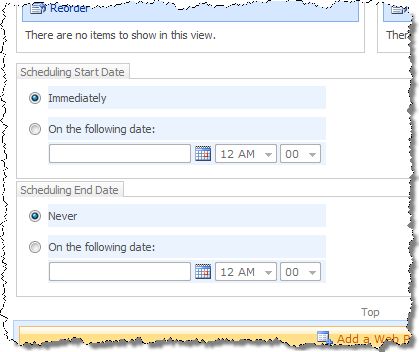
Using the CssClass property of the control I was able to distinguish the publishing start date control from the publishing end date control and apply the custom logic only when required.
To attach the Control Adapter to the PublishingScheduleFieldControl control I have used the following .browser file:
<browsers>
  <browser refID="Default">
    <controlAdapters>
      <adapter controlType="Microsoft.SharePoint.Publishing.WebControls.PublishingScheduleFieldControl, Microsoft.SharePoint.Publishing, Version=12.0.0.0, Culture=neutral, PublicKeyToken=71e9bce111e9429c" adapterType="Imtech.SharePoint.Controls.PublishingScheduleFieldControlAdapter, Imtech.SharePoint.Controls" />
    </controlAdapters>
  </browser>
</browsers>
Technorati Tags: SharePoint,SharePoint 2007,MOSS 2007