Mavention Insert Table of Contents

, , , ,

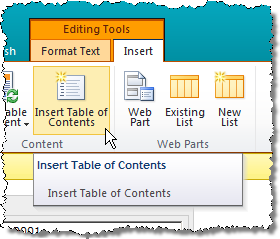
Insert Table of Contents button on the SharePoint's Ribbon.Earlier this year Yoast wrote an interesting article about how including a Table of Contents (TOC) for longer articles can help you drive traffic to your content from search engines. While there are some plugins available for other Content Management Systems, that help you with generating TOC for your pages, if your website is hosted on SharePoint, you still have to insert the Table of Contents manually. At least you had to, because now you can do this automatically using the Mavention Insert Table of Contents solution.

Mavention Insert Table of Contents is a Sandboxed Solution that allows you to automatically insert a Table of Contents for your page based on its contents. Upon installation of the Solution a new button is added to the Ribbon’s Content group on the Insert tab:
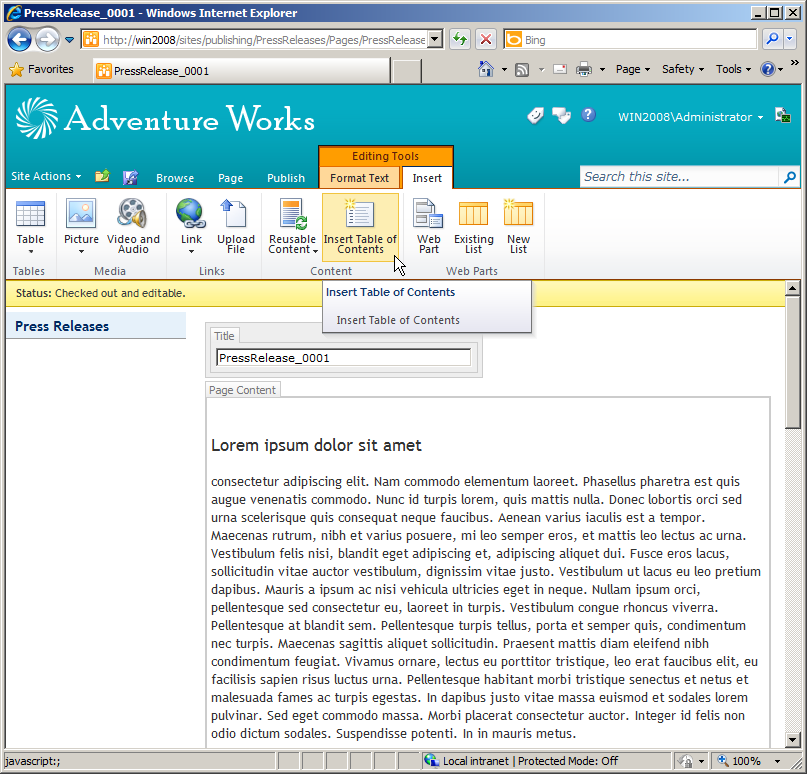
The Insert Table of Contents button on the Ribbon.

After clicking the Insert Table of Contents button, the contents of the active Rich HTML fields are scanned, and a Table of Contents is generated based on the headers’ structure. The generated TOC contains only links to level 2 headers. Since the level 1 header is reserved for the title of the current page which should be located outside the Rich HTML field, level 2 is the first level within the page content used for structuring the content. Once generated, the TOC is being inserted at the cursor position.
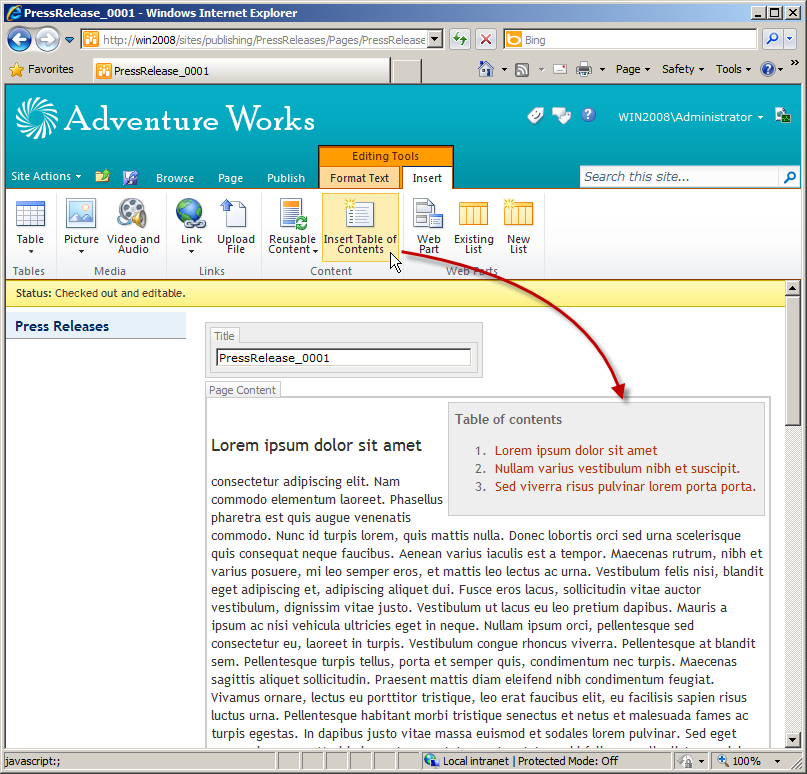
Generated Table of Contents inserted at cursor position after clicking the Insert Table of Contents button on the Ribbon.

The generated Table of Contents is being rendered as an ordered list (OL). In my example I’ve used the following CSS snippet to style the TOC:

#toc {
    float: right;
    border: 1px solid #ccc;
    background: #eee;
    color: #666;
    padding: 0.5em;
}

#toc p {
    font-weight: bold;
}

And that’s it: using the Mavention Insert Table of Contents Solution you can generate a TOC for your page with a single mouse click. And if you ever change the structure of your content, you can simply remove the old TOC and generate the new one.
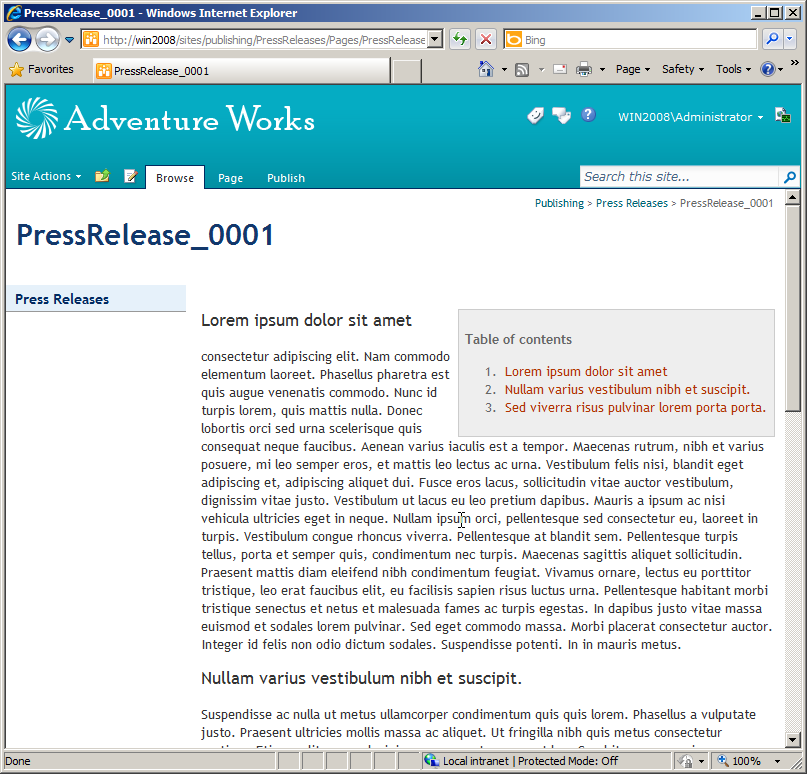
Publishing Page with Table of Contents generated using the Mavention Insert Table of Content Solution.

Download: Mavention Insert Table of Contents (2KB, WSP)

Technorati Tags: ,


Possibly related posts

12 Responses to “Mavention Insert Table of Contents”

  1. Panthera Says:

    Hi Waldek

    Thanks for this TOC, which is much needed in SP 2010.

    I just deployed the wsp which activated without any errors. However i can't seem to pinpoint what type of headers that is triggering the TOC? If I create a blank document with 3 headers, and the default markup style "Heading 1", nothing happens when I click insert TOC.

    If i insert the TOC in an already finished document, with 20 headers, it only list the very first header as number 1, the very last header as number 2, and a blank line as number 3.

    Can I configure how you solution reads and display my headers?

    Thanks again :)

  2. Waldek Mastykarz Says:

    @Panthera: as mentioned in the article the Mavention Insert TOC solution uses Header 2 tags for building up the TOC. Header 1 is reserved for the page title and shouldn't be used in the Rich Text Editor. At this moment this is how it works, but let me know if you have other ideas about what would be useful.

  3. Hikmer Says:

    I installed the solution but when clicking the Insert TOC button, it doesn't do anything. Any ideas?

  4. Waldek Mastykarz Says:

    @Hikmer: do you have any H2 in your RTE?

  5. Vickie Says:

    Two quick things. First, I'd like to use un-ordered lists instead. Is this something I can customize on my own?

    Second, you asked for suggestions. I'd like to have H3 tags cause a second level indent. This could either be an un-ordered list or an a, b, c list. Having an H4 level would be overkill IMHO. At that point, the page should probably be broken out into sub pages.

  6. Waldek Mastykarz Says:

    @Vickie: Thank you for your suggestions, Vickie. I will definitely keep them in scope for future updates :)

  7. Dionna Says:

    Question I'm a newbie to sharepoint and I tried to deploy this solution and was successful and activated the feature in my site collection. However I don't see the Content section in my ribbon when editing a page. Can someone guide me in the right direction?

  8. Waldek Mastykarz Says:

    @Dionna: could it be that you're using it with SharePoint Foundation or on a non-publishing site?

  9. Dionna Says:

    @waldek: Thanks for the tip and you are right! What would it take to have this work on a wiki library on a team site?

  10. Dionna Says:

    So I've turned on the publishing features for the site and I can see the feature in the ribbon now. When I insert the table it's pretty big and I don't now about using designer all that well. Can you point me in the right direction? Thanks for all you help and it's a great solution!

  11. Johannes Says:

    Hi, looks like a great plugin :-) I'm a sharepoint newbie and tried to install it. However, I can't as I'm running sharepoint foundation. As a help for others it would be nice with a small "requirements" section stating that sharepoint foundation is a "no go".

  12. Waldek Mastykarz Says:

    @Johannes: Having presented it with a Publishing Site I assumed it would speak for itself, but you're right: a requirements section would be more obvious.
    The best part is that it doesn't require SharePoint Server to work. It's just the Content section that comes from SharePoint Server ;-)

Leave a Reply

Security Code:

WP Theme & Icons by N.Design Studio
Entries RSS Comments RSS
Copyright © 2007 - 2012 Waldek Mastykarz

Creative Commons License