Preventing provisioning duplicate Web Parts instances on Feature reactivation

, , ,

Recently I wrote about various approaches to provisioning Web Part instances in a structured and repeatable way. One of the approaches I have mentioned was using the AllUsersWebPart element within Feature manifest. While being manageable and flexible this approach has one big downside: it causes provisioning duplicate instances after the Feature has been reactivated (either by Activate-Deactivate-Activate or Activate using the -force parameter). In this article I present some possible approaches to prevent it and make your Feature provision always only one instance of each Web Part.

Removing the duplicated Web Parts manually upon the Feature activation

After the Feature has been activated the information about Web Parts which should be included within a Page Layout can be accessed using the Web Part Maintenance View of a Page Layout. You can access it by navigating to the Master Page Gallery, opening your Page Layout by simply clicking on it and append ?contents=1 to the url.
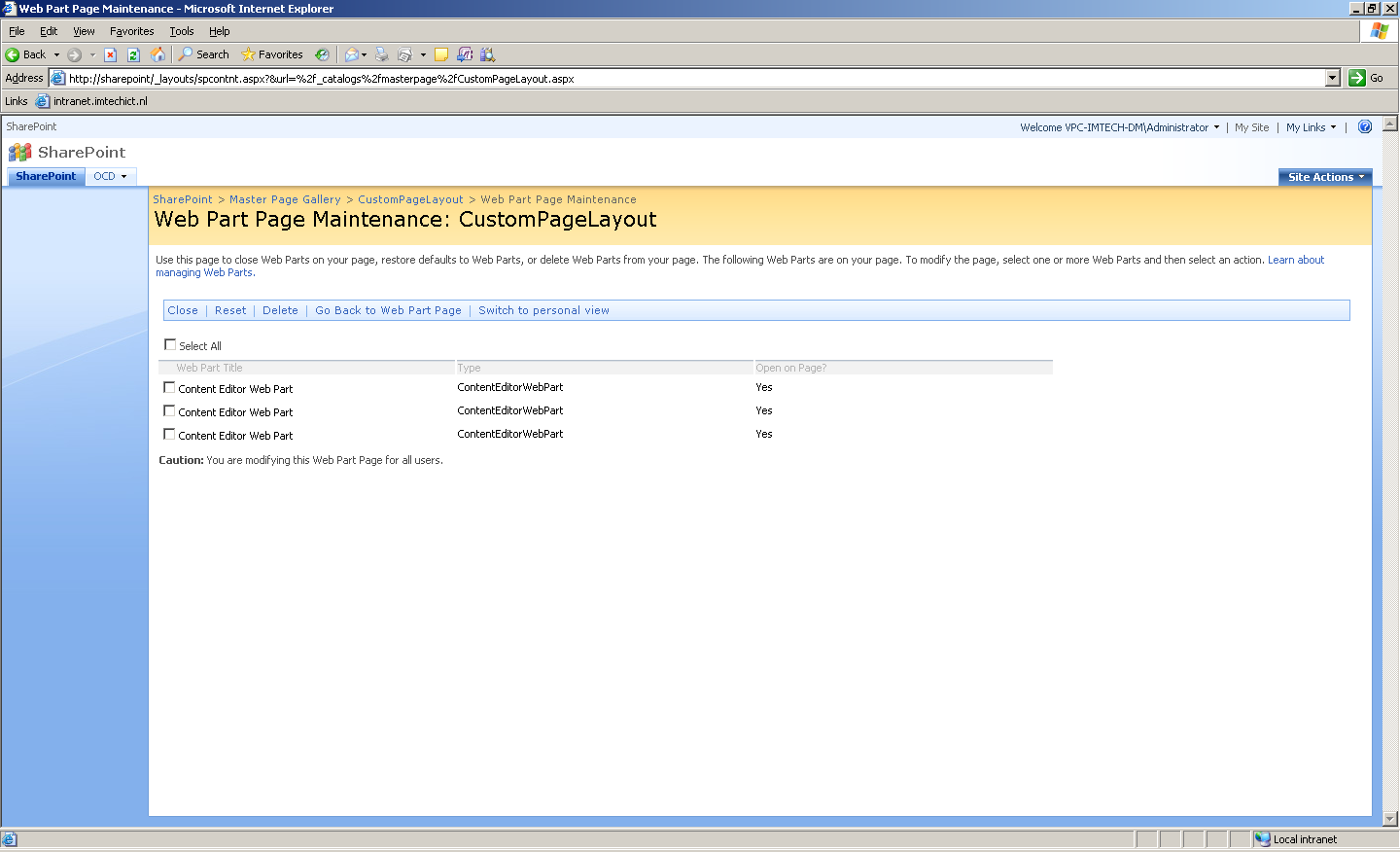
Web Part Page Maintenance

Using the presented information you can remove the duplicated Web Part instances without customizing the Page Layout.

Using this approach to remove the duplicate Web Part instances is really straight forward. It is a plausible concept unless you're not allowed to do anything manual on the production environment.

Automatically removing the duplicated Web Parts instances using Feature Receiver

The duplicated Web Parts instances are being provisioned during the Feature activation. Unfortunately the WSS team didn't provide an asynchronous event to plug into the Feature activation process and control it in any way. Instead there is a FeatureActivated event which fires right after the Feature has been activated. While it might seem that it's too late to do the cleaning there are still some possibilities to avoid displaying the duplicated Web Parts on Publishing Pages.

While thinking on a solution for this challenge I think about two approaches: an easy one but less foolproof and a more general one removing only the Web Parts defined by the activated Feature.

Removing all duplicated Web Part instances

The first approach you might consider is iterating through the WebParts collection of the particular Page Layout, comparing the XML of each one of them and removing any duplicate found. You could do this for example like that:

using (SPSite site = new SPSite("http://sharepoint"))
{
  SPList list = site.GetCatalog(SPListTemplateType.MasterPageCatalog);
  SPListItemCollection items = list.Items;
  List<string> webParts = new List<string>();

  // find the right Page Layout
  foreach (SPListItem item in items)
  {
    if (item.Name.Equals("CustomPageLayout.aspx",
      StringComparison.CurrentCultureIgnoreCase))
    {
      SPFile file = item.File;
      // get the Web Part Manager for the Page Layout
      SPLimitedWebPartManager wpm =
        file.GetLimitedWebPartManager(PersonalizationScope.Shared);
      // iterate through all Web Parts and remove duplicates
      while (wpm.WebParts.Count > 0)
      {
        StringBuilder sb = new StringBuilder();
        XmlWriterSettings xws = new XmlWriterSettings();
        xws.OmitXmlDeclaration = true;
        XmlWriter xw = XmlWriter.Create(sb, xws);
        System.Web.UI.WebControls.WebParts.WebPart wp =
          wpm.WebParts[0];
        wpm.ExportWebPart(wp, xw);
        xw.Flush();
        string md5Hash = getMd5Hash(sb.ToString());
        if (webParts.Contains(md5Hash))
          wpm.DeleteWebPart(wp);
        else
          webParts.Add(md5Hash);
      }
    }
  }
}

The first step is to get the reference to the Page Layout. Then you will obtain a reference to the SPLimitedWebPartManager of the given Page Layout which contains information about all Web Parts attached to that Page Layout. Last but not least you will iterate through the WebPart collection and remove any duplicate Web Parts found. To do the comparison I have used an MD5 hash which I store in a list. I compute the hash using the method presented on the MSDN site.

In my opinion the above method will work in almost every case because you are not likely going to display two exactly the same Web Parts on one page. It's biggest limitation is the lack of distinction between Web Parts provisioned by different Features. However, if your main goal is removing the duplicate Web Parts, it might be just something for you.

Removing only the duplicate instances of the Web Parts provisioned by the currently activated Feature

While trying to prevent a Feature to provision multiple instances of the same Web Part automatically there is another approach, than the one above, you could consider. On one hand it is more complicated. On the other hand it provides you more control about what you are doing and thanks to it abstract character it is reusable in Features without any need of modification. Because of its complexity I'd rather focus on the concept itself rather than providing the exact code.

The whole concept bases, just like before, on comparing Web Parts to determine whether they should be removed or not. For this purpose you could reuse the code part responsible for MD5 hash generation based on the Web Part definition as presented above.

The first step would be obtaining information about the Web Parts which belong to the Feature which just has been activated. You would therefore obtain the Feature definition, parse the XML file to get the references to all Element files and then parse these to get the information about Web Parts. You would parse this information together with the information about Page Layouts which reference these Web Parts.

After having that information stored you would then go to iterating through the available Page Layouts – just like in the previous approach. The difference here would be the comparison which would now be done based on the information stored earlier rather than in the Page Layouts itself.

As I've already mentioned this approach is a bit more complicated than the one before. The only reason you might want to choose it is the extra bit of control it gives you about the comparison process.

Summary

Provisioning Web Part instances using the AllUsersWebPart element is, in my opinion, one of the most structured and repeatable approaches for deploying Web Part instances. While it introduces a minor challenge of provisioning duplicated Web Part instances upon Feature reactivation, it still remains a plausible concept for many scenarios. Gaining extra piece of control on provisioning Web Part instances might be required if you want to use this approach and still keep the ability to reactivate the Feature when necessary without any impact on your deployment package.

26 Responses to “Preventing provisioning duplicate Web Parts instances on Feature reactivation”

  1. Dave Says:

    I couldn't get your sample code to work for some reason – maybe because I'm using WSS 3.0 and you're using some other version or maybe because I'm activating a feature on a sub-site. I experienced an infinite loop and the getHashCode function would return a different hash for duplicate web parts. Anyway, I got the following code to work fine (it uses the web part's type name to find dupes, so multiple instances of the same web part with different properties will be inadvertently removed):

    public override void FeatureActivated(SPFeatureReceiverProperties properties)
    {
    foreach (SPFolder folder in ((SPWeb)properties.Feature.Parent).Folders)
    {
    if (folder.Name[0] != '_')
    {
    foreach (SPFile file in folder.Files)
    {
    List webParts = new List();

    // Get the Web Part Manager for the Page Layout
    SPLimitedWebPartManager wpm = file.GetLimitedWebPartManager(PersonalizationScope.Shared);
    if (wpm.WebParts.Count > 1)
    {
    // Iterate through all Web Parts and remove duplicates
    for (int index = wpm.WebParts.Count – 1; index >= 0; index–)
    {
    System.Web.UI.WebControls.WebParts.WebPart wp = wpm.WebParts[index];
    string webPartTypeName = wp.WebBrowsableObject.GetType().FullName;

    if (webParts.Contains(webPartTypeName))
    {
    wpm.DeleteWebPart(wp);
    }
    else
    {
    webParts.Add(webPartTypeName);
    }
    }
    }
    }
    }
    }
    }

  2. Waldek Mastykarz Says:

    @Dave: Thanks for sharing, Dave. Don't forget to dispose the SPLimitedWebPartManager (I haven't done it either in my code ;))

  3. Larry Says:

    Waldek,
    Thank you- you saved my sanity!
    I was able to use the first method of manually removing the duplicated items.
    A suggestion for you and your readers: if you know you are about to re-activate a feature that will cause this duplication problem, you could pre-emptively delete all shared web parts off of the Page Layout *before* activating. If you delete them after re-activating you have to judge which are the old instances and which are the new. In my case, the old instances were listed first. Hopefully that is always the pattern.

  4. Waldek Mastykarz Says:

    @Larry: Thank you for sharing the insights. Great to hear I was able to help you. It's really awkward that this is the default SharPoint's behavior and that there is no way to distinguish which Web Part are already on the page and which are being added.
    Removing all of them prior to Feature activation seems a little too dangerous to me: you might lose some settings which were done after the Web Part has been provisioned to the page. Once again: we really need a bullet-proof mechanism to check whether two Web Part instances are the same or not.

  5. Josh Norris Says:

    The problem with the code provided is that it will alwayss delete every web part in the page. The way it is written the current web part is always the one at the "zeroth" element in the WebParts collection. Once one is found, it is added to the webParts hash list, then when it loops again, it picks up the same web part again (second loop iteration) finds it in the webpart hash list and then deletes it… continues until there are no more items in the WebParts list (the exit condition of the while loop REQUIRES that there be no more web parts in the webParts collection)

    A for loop approach like Dave provided works like a charm: Here are my fixes:

    using (
    SPLimitedWebPartManager mgr = folder.ParentWeb.GetLimitedWebPartManager(
    file.Url,
    PersonalizationScope.Shared
    )
    )
    {
    if (mgr.WebParts.Count > 1)
    {
    var webParts = new List();
    for (int index = mgr.WebParts.Count – 1; index >= 0; index–)
    {
    var sb = new StringBuilder();
    using (var ms = new MemoryStream())
    {
    var xw = new XmlTextWriter(ms, Encoding.UTF8);
    //xw.Settings.OmitXmlDeclaration = true;
    SystemWebPart wp = mgr.WebParts[index];
    mgr.ExportWebPart(wp, xw);
    xw.Flush();
    string md5Hash = getMd5Hash(sb.ToString());
    if (webParts.Contains(md5Hash))
    {
    mgr.DeleteWebPart(wp);
    }
    else
    {
    webParts.Add(md5Hash);
    }
    }
    }
    }
    }

  6. Waldek Mastykarz Says:

    @Josh: You are right, Josh. The way I designed the solution initially was to remove all the Web Parts' duplicates. Just like you, I've noticed that the while loop might lead to an infinite loop in some situations. Your code solves that problem. To finish it up I'd replace the for loop with foreach (recommended for traversing SharePoint collections) and dispose the SPLimitedWebPartManager (haven't done that myself either).

  7. Keith Dahlby Says:

    A suggestion and a question:

    1) Use a HashSet instead of List. Asymptotically faster and simpler code:

    if (!webParts.Add(md5Hash))
    {
      mgr.DeleteWebPart(wp);
    }

    2) I only work in English, so I don't know as much as I should about i18n. That said, my understanding is that URLs (and catalog name) will always be ASCII, in which case you could (should?) use an OrdinalIgnoreCase comparison. What do you think?

    Cheers ~
    Keith

    PS ~ Your XmlWriter should be disposed as well. ;)

  8. Waldek Mastykarz Says:

    @Keith Dahlby: thanks for the suggestions Keith. I also work most of the times with English solutions only. The code above is more of a proof-of-concept and shouldn't be used in production environments. You should definitely check whether it works OK with different configuration settings of your env.
    XmlWriter disposal = yes ;)

  9. Marc Says:

    Hi Waldek
    It's a fact, that you have to checkout a page layout to remove webparts out of it if we deal with a standard publishing site. That fact leads to customize (unghost) the page layout. By using Gary Lapointe's STSADM extensions I am able to reghost the page layouts to get filesystem changes published by an stsadm upgradesolution and immediately reflected on the page. That's great, BUT:
    The reghosting doesn't uncustomizes the pages content (i.e. webparts). If you reactivate the feature which provisions webparts to a page layout, that was customized (e.g. webparts removed) and reghosted before, then the webparts don't get added to the page anymore. I can reactivate the feature multiple times (with -force), but no webparts are getting added.
    Can you confirm this behaviour?
    It seems like SharePoint deals with two parts for a page layout. One part is the file itself which can be reghosted with the SPFile's RevertContentStream method. The other part is the content, which defines which webparts are placed on the page layout. If this content get's customized, the feature provisioning of webparts stops working.
    Do you know of a way to uncustomize the contents of a page to get the webparts republished to the page?
    Regards, Marc

  10. Waldek Mastykarz Says:

    @Marc: so far I was pretty sure that reverting the customization status of a Page Layout after deleting the Web Parts would do the job. If you say that you are actually experiencing issues with it, I'd have to test it once again to either confirm it or not.
    Meanwhile I've talked to a SharePoint dev who said that he doesn't use Features to attach Web Parts to Page Layouts. Instead he pastes the exported Web Part XML directly into the Page Layout inside a Web Part Zone. He said it works and that he never had problems with it. I haven't tried it myself yet, but it might be just the answer we're looking for.

  11. Peter Steffensen Says:

    Hi Waldek.
    Also facing the problem with duplicate webpart. Have you verified if the approach of copying in Webpart XML to the webpart zone works?

    PS: I can get it to work by inserting a webpart outside a webpart zone but the webpart cannot be edited by the user then.

  12. Waldek Mastykarz Says:

    @Peter Steffensen: yup, I checked it and it works. The problem is that the XML you get from the Web Part Export is not the thing you have to paste in the page. To see the difference simply open SharePoint Designer and drag&drop the Web Part: you will see a slightly different markup – the control markup. That's the one you have to be using.

  13. Bernado Nguyen-Hoan Says:

    Hey Waldek,

    Many thanks for sharing this. I have a similar problem: the web parts get duplicated when I change the page layout from the ribbon while editing the page. Have you seen this before and any suggestion?

    Thanks,
    Bernado

  14. Waldek Mastykarz Says:

    @Bernando: Unfortunately I haven't experienced such issue myself. Have you checked logs for any oddities?

  15. Bernado Nguyen-Hoan Says:

    Hey Waldek,

    No, no oddities in the ULS.

    To clarify, this is what happens: User creates a new page of custom page layout 1. This has 3 web parts on it by default (added to the page layout using AllUsersWebPart). When the user uses the ribbon to change to custom page layout 2, the page now contains web parts from both the previous page layout and the new page layout.

  16. Removing duplicate web parts when changing page layout via the ribbon | Bernado Nguyen-Hoan's Blog – Coding Stories from an IT Mercenary Says:

    [...] A similar issue is when you reactivate the feature that provisions the custom page layout. In this case, the web parts are duplicated on the custom page layout itself. Waldek Mastykarz has blogged about a solution for this case: http://blog.mastykarz.nl/preventing-provisioning-duplicate-web-parts-instances-on-feature-reactivati…. [...]

  17. Bernado Nguyen-Hoan Says:

    Inspired by your solution, I solved my problem by adding a code-behind class and detecting the ChangePageLayout event and remove the web parts of the current page layout in that event: http://bernado-nguyen-hoan.com/2011/10/13/removing-duplicate-web-parts-when-changing-page-layout-via-the-ribbon/

  18. Ryan Says:

    I was running into the same problem with duplicate webparts so I was really grateful for this blogpost. However I can't seem to be able to get it to work. Deleting the webpart via the webpartmanager without checking out leads to an exception that the file isn't checked out. Checking out the page layout file before deleting the webpart gets me the exception that the file has been checked out!

    Anybody have any clue to why this isn't working. I've also tried setting 'AllowUnsafeUpdates' on the web where the file is residing. No dice. What am I missing?

  19. Cam Says:

    Hey Ryan,
    I was running into the same problem and used Carlos' suggestion here to fix it. Hope it helps someone.

    http://social.msdn.microsoft.com/Forums/en-US/sharepointdevelopment/thread/2cf226bf-1fce-4866-87ef-f00c696ecbcd/

  20. Duplicate Web Parts appear when you activate and deactivate a feature « Miguel Costa Says:

    [...] – Waldek has an elegant solution to this problem in 'Preventing provisioning duplicate Web Part instances on Feature reactivation', as well as sample code similar to what we wrote for our script. [...]

  21. Danny Says:

    Hi Waldek,

    I have a feature that provisions some pagelayaouts. In my node of a specific page I have a AllUsers element wich adds
    a default webpart. When I first installed my solution everything works well. When I create a page based on this pagelayout the webpart is automatically added.
    I now do a upgrade off my solution. And now my pagelayout is corrupt.

    When I try to create a page based on this layout I get error

    "Webpart with same ID has alreade been added."

    When I open page layout from pagelayout gallery I get

    "Webpart with same ID has alreade been added."

    When I open page layout from pagelayout gallery and add ?contents=1

    "I get page not found."

    When I use this the code of your post This line

    SPLimitedWebPartManager wpm = file.GetLimitedWebPartManager(PersonalizationScope.Shared);

    Gives an exception (Webpart with same ID has alreade been added.)

    Also with Powershell when I try to access file or wp manager i get

    "Webpart with same ID has alreade been added."

    The only thing that helps is

    Making a site collection backup
    Delete all pages based on pagelayout
    Delete pagelayout
    Deactivate and activate feature that deploys pagelayout
    Restore site collection backup

    Is there a way to fix this?

  22. Waldek Mastykarz Says:

    When you're adding the Web Part to the Page Layout, are you setting its ID explcitly? If so, why?

  23. Danny Says:

    Hi,

    I'm not setting ID. It also doesn't always goes wrong. yesterday I did a clean install and after that an update. No problems. Day before problems. Here is my element file for the page layout

    <![CDATA[

    $Resources:core,ImportErrorMessage;

    GlobalContactBlock
    My Visual WebPart
    None

    ]]>

  24. Danny Says:

    Hi,

    I'm not setting ID. It also doesn\'t always goes wrong. yesterday I did a clean install and after that an update. No problems. Day before problems. Here is my element file for the page layout

    <File Path=\"Pagelayouts\\VacatureDetailPage.aspx\" Url=\"VacatureDetailPage.aspx\" Type=\"GhostableInLibrary\">
    <Property Name=\"Title\" Value=\"VacatureDetailPage\" />
    <Property Name=\"MasterPageDescription\" Value=\"ColumnPage PageLayout\" />
    <Property Name=\"ContentType\" Value=\"$Resources:cmscore,contenttype_pagelayout_name;\" />
    <Property Name=\"PublishingPreviewImage\" Value=\"~SiteCollection/_catalogs/masterpage/$Resources:core,Culture;/Preview Images/ArticleRight.png, ~SiteCollection/_catalogs/masterpage/$Resources:core,Culture;/Preview Images/ArticleRight.png\" />
    <Property Name=\"PublishingAssociatedContentType\" Value=\";#CareVacature;#0x010100C568DB52D9D0A14D9B2FDCC96666E9F2007948130EC3DB064584E219954237AF3900D1D4D8022C8D4E8A9C8E5B1CE5EECE150061caff32e6b843d0ab250eb7e1ebc835;#\" />
    <AllUsersWebPart ID=\"GlobalContactBlock\" WebPartOrder=\"0\" WebPartZoneID=\"SideBar\">
    <![CDATA[
    <webParts>
    <webPart xmlns=\"http://schemas.microsoft.com/WebPart/v3\">
    <metaData>
    <type name=\"Website.SharePoint.WebParts.GlobalContactBlock.GlobalContactBlock, $SharePoint.Project.AssemblyFullName$\" />
    <importErrorMessage>$Resources:core,ImportErrorMessage;</importErrorMessage>
    </metaData>
    <data>
    <properties>
    <property name=\"Title\" type=\"string\">GlobalContactBlock</property>
    <property name=\"Description\" type=\"string\">My Visual WebPart</property>
    <property name=\"ChromeType\" type=\"chrometype\">None</property>
    </properties>
    </data>
    </webPart>
    </webParts>
    ]]>
    </AllUsersWebPart>
    </File>

  25. Bruce Ferman Says:

    Microsoft have informed me that they do not support upgrading page layouts that were deployed with default web parts in them. They also say they're updating their documentation to include this information.
    Once you deploy a page layout with default web parts in it, those web parts will forever reside in your content database. Removing the page layout from SharePoint will leave the now orphaned web parts in the DB. Reinstalling the page layout without the default web parts will still result in the (no longer) orphaned web parts being injected into pages using the page layout.

  26. Waldek Mastykarz Says:

    That's interesting. Do you have any more information about which ways of adding Web Parts to Page Layouts are and which are not supported?

Leave a Reply

WP Theme & Icons by N.Design Studio
Entries RSS Comments RSS
Copyright © 2007 - 2013 Waldek Mastykarz

Creative Commons License