Publishing Pages in multiple locations with Mavention Virtual Pages
Many popular Web Content Management Systems allow you to reuse content across the site. Once published you can then include (fragments of) the page in other places on your website, providing a seamless experience to your visitors. And if you ever need to change something, you can do it in one place and those changes will be automatically pushed to all other locations. Reusing content is probably one of the most desired capabilities in WCM, so it’s pretty surprising that it isn’t available out of the box in SharePoint 2010. While SharePoint 2010 has the concept of Reusable Content it’s meant more for creating small content snippets rather than using it for republishing content on your website. And this is exactly where Mavention Virtual Pages gets useful.
What is Mavention Virtual Pages?
Mavention Virtual Pages is a custom SharePoint 2010 Solution that allows you to publish the content of Publishing Pages in multiple locations on your site.
Upon deployment Mavention Virtual Pages installs a new Site Collection Feature called Mavention Virtual Pages.

Upon activation the Mavention Virtual Pages Feature will install a new Content Type called Virtual Page and will provision a sample Page Layout called Mavention Virtual Page. The idea here is that the Content Type ships with the basic publishing capabilities for Publishing Pages and additional field that allows you to select a Publishing Page that you want to display.
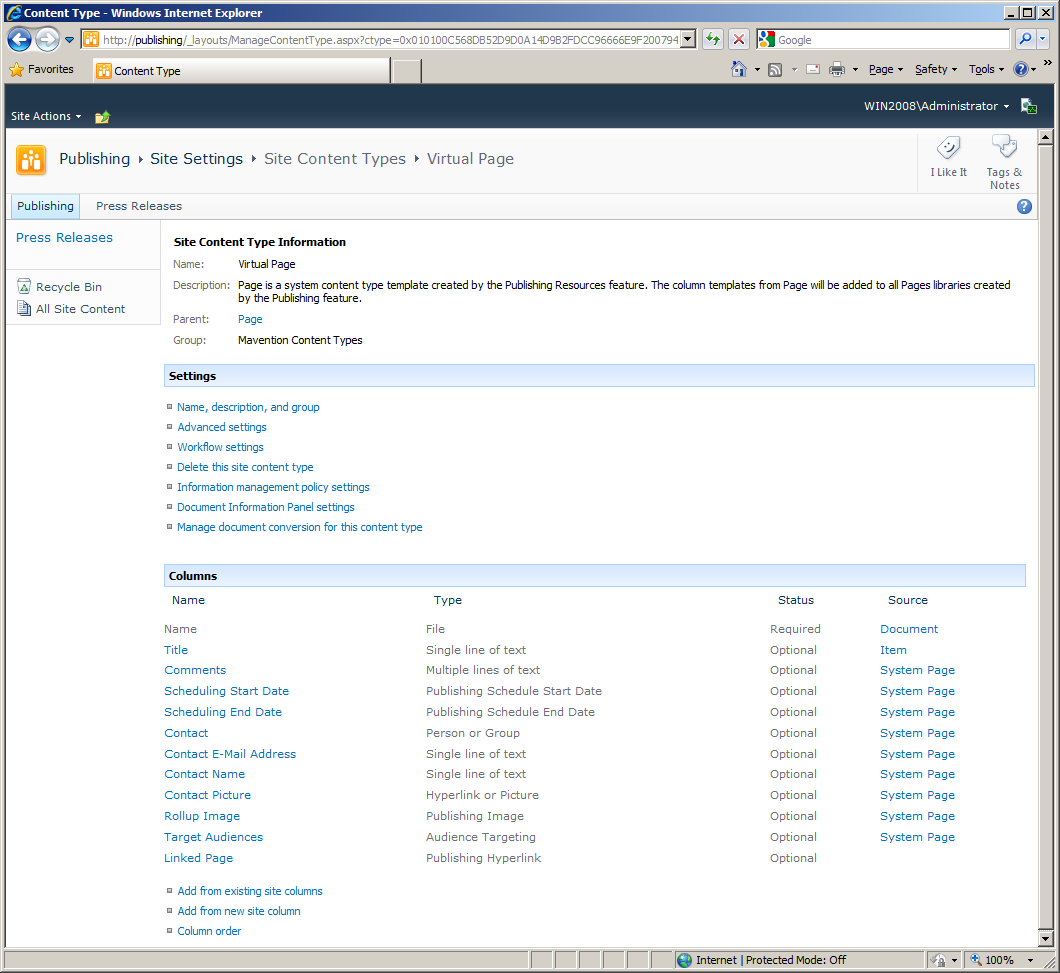
The Mavention Virtual Page Page Layout is a sample Page Layout that you can use for creating your own Page Layouts to support the reuse of pages in your site.

How Mavention Virtual Pages work
The working of Mavention Virtual Pages is very simple. When you look at the sample Page Layout you might not notice anything odd: it contains all the regular pieces that every Page Layout in SharePoint has. The only difference is that the sample Page Layout is attached to the Mavention.SharePoint.VirtualPages.VirtualPage class which makes creating virtual pages possible. So if you start creating your own Page Layouts for Virtual Pages this is one thing that you shouldn’t forget otherwise it will not work.
Using Mavention Virtual Pages: a step-by-step guide
To better illustrate you the working of Mavention Virtual Pages let’s follow a simple scenario where we will create a Publishing Page in one place on the site and will the publish the same page in a different site. This manual assumes that the Mavention Virtual Pages Solution has already been deployed and that the Mavention Virtual Pages Feature has been activated. In this case we will use the sample Mavention Virtual Page Page Layout shipped with the Mavention Virtual Pages Solution.
First, let’s create a Publishing Page somewhere on the site. For this purpose we will use the Article Left Page Layout available with the standard SharePoint Server 2010 Publishing Site. Also let’s include some sample content that we will reuse later on.
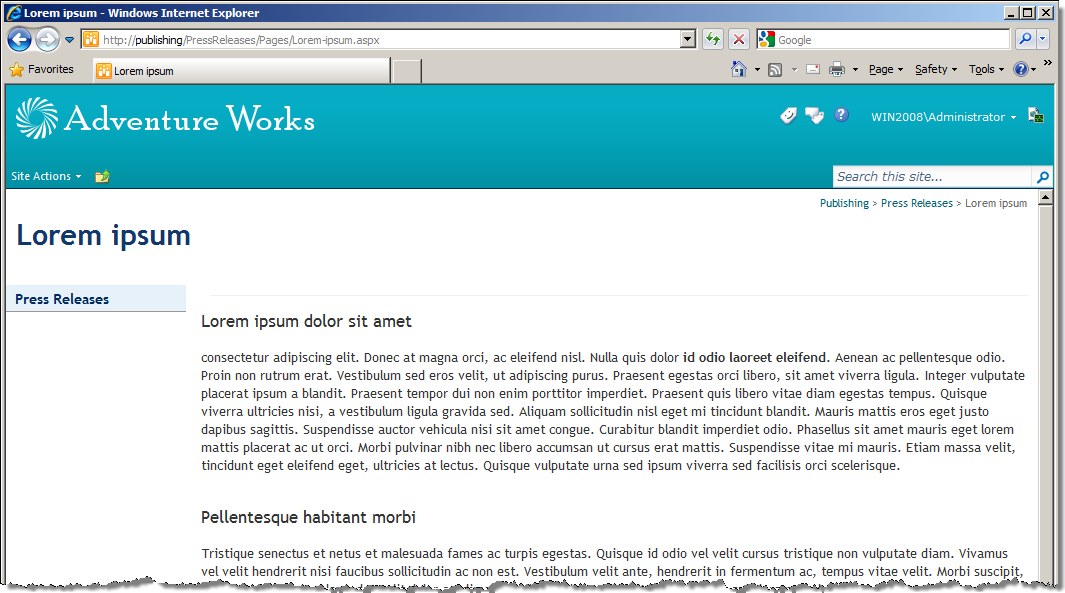
The next step is to reuse the page that we have just published. Let’s go to another place in the site and create a new Publishing Page.
Before you do this, you might want to ensure that you are allowed to use the Mavention Virtual Page Page Layout in your site. You can do this by navigating to Site Actions > Site Settings > Look and feel > Page layouts and site templates and see if the Mavention Virtual Page is on the list of Allowed Page Layouts.
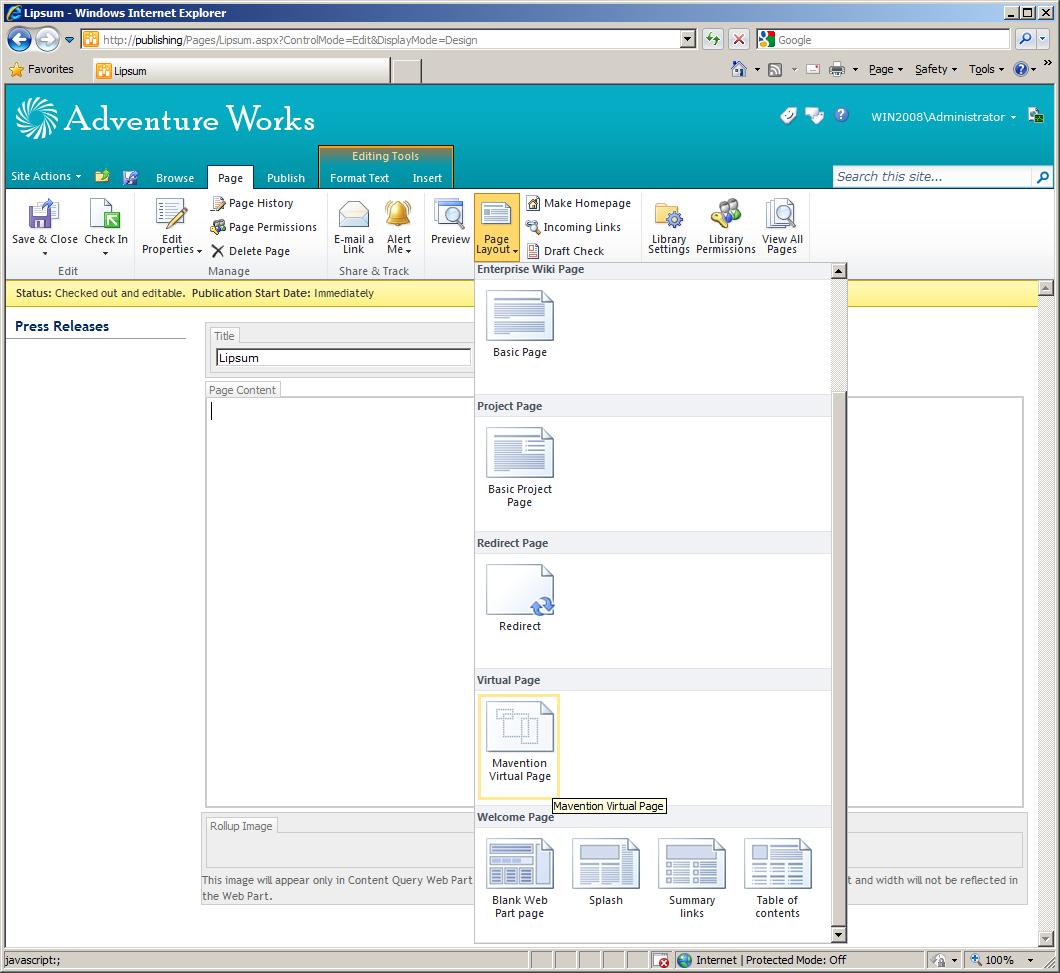
After creating the page let’s change the Page Layout to Mavention Virtual Page:
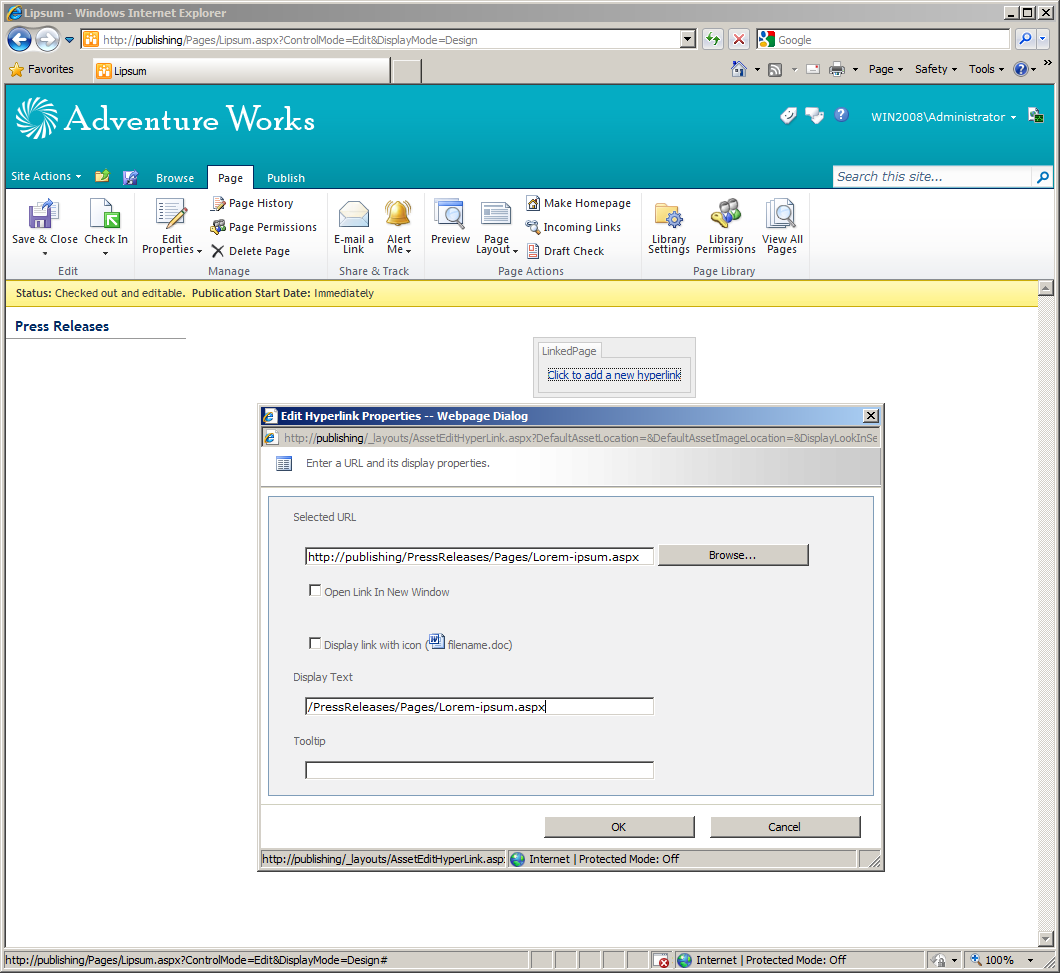
The next step is to link the Virtual Page to the page that we created earlier. You can do this by specifying the link in the Linked Page field:
The last thing is to publish the Virtual Page. After that you should see the contents of the page that you have linked the Virtual Page to.
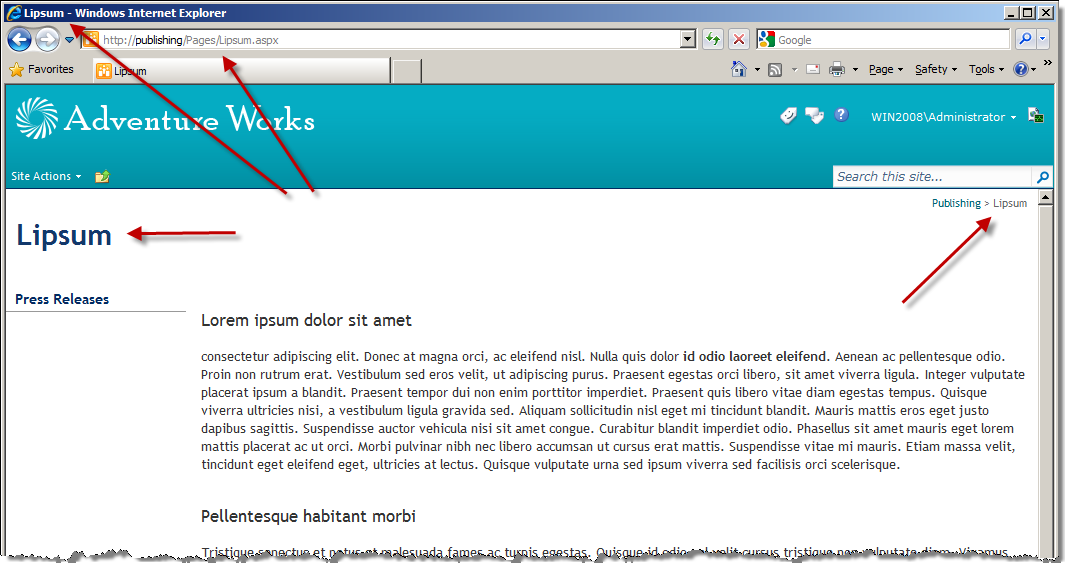
Notice that the Page Title in the title bar, in the page and in the breadcrumbs contains the title of the Virtual Page, while the content of the page is being retrieved from the linked page.
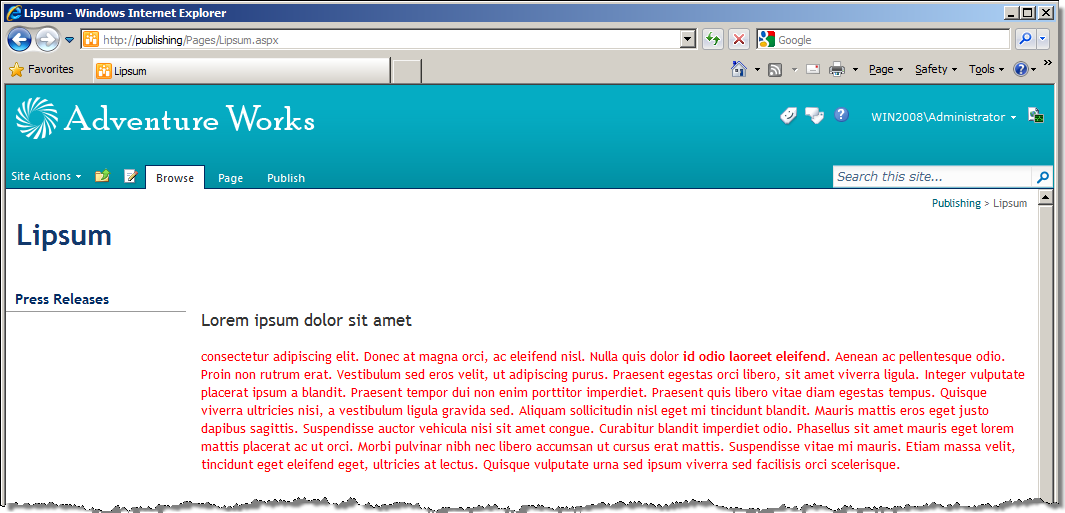
Now let’s see how Mavention Virtual Pages deal with changes. Let’s go to the original page and change something in its contents.

If you navigate to the Virtual Page you should see the refreshed contents of the Publishing Page.
Benefits of using Mavention Virtual Pages
Mavention Virtual Pages is a great solution if you need republishing capabilities in your Web Content Management solution based on the SharePoint Server 2010 platform.
Mavention Virtual Pages works using a simple concept and contains just a few lines of custom code of which all is within the supported public API of SharePoint Server 2010. This makes the Solution robust and reliable. Mavention Virtual Pages use standard controls shipped with SharePoint to render the content so there is no data loss while using Virtual Pages.
Although retrieving the data from linked Publishing Pages happens dynamically, there is no performance penalty when combined with caching and all the content of the Publishing Page linked to a Virtual Page is being retrieved from cache just as it was a part of the Virtual Page itself.
Mavention Virtual Pages is a great Solution if you have a lot of similar pages that you want to publish in multiple locations on your website. As it’s based on Page Layouts it allows you to quickly republish existing pages in other locations. Additionally as it works with anonymous users, it makes a great Solution for your Internet-facing website.
Future considerations
This is the first release of Mavention Virtual Pages. While it successfully covers the most common scenario’s there are few things that you should consider before using it in your solution.
Web Parts in content
SharePoint 2010 allows you to include Web Parts in content. And although from the content editor point of view seems like the Web Parts are a part of content that is being retrieved by Virtual Pages, they actually live outside of the content. While rendering the content, SharePoint replaces markers in text with the Web Parts that physically live in a hidden Web Part Zone. This is why at this moment Mavention Virtual Pages don’t support Web Parts in content.
Virtual Pages are Page Layout-based
Mavention Virtual Pages are based on Page Layouts to render the contents of linked pages. While it gives you a consistent experience from the development point of view, it might seem limiting from the content editor point of view. To link to multiple types of pages, like press release or event, you need multiple Page Layouts linked to the Virtual Page Content Type. Because a press release will very likely contain different set of information than an event, you will have to create two separate Page Layouts to display the information.
Usage reporting
Intensively using Virtual Pages might turn into a nightmare from the content management point of view. While it gives you to great ability of reusing content that is already there in your website, it doesn’t provide you with an overview of which page has been linked to and from where. So when you delete a page published in one page, you might break something in another without even knowing it. Providing an overview of pages that are reused somewhere else in the site is definitely a great idea for a future improvement.
Deployment
As you might know by now, the Publishing capabilities of SharePoint Server 2010 are not yet available in the Sandbox. This mean that you need your IT department to get this deployed. Hopefully this is something that we will see changing in the future releases of SharePoint, but at this moment this Solution is available only as a Farm Solution.
Download: Mavention Virtual Pages (WSP, 7KB)
Technorati Tags: SharePoint 2010,WCM