Showing random images in SharePoint 2007 using jQuery

, , ,

If you’ve been following my blog you know that a bit more than a year ago I’ve published the Imtech Random Image Web Part: a SharePoint web part which allows you to display random images from a list of your choice. The web part I’ve made contains some code which you would have to deploy it in your SharePoint environment to get it working. Did you actually know that you can create the same functionality using no more than a couple of lines of JavaScript and no server-side code at all?

Showing random images: the ingredients

There are two things we need to display random images. First of all an image library with some images in it. It doesn’t matter how many or what kind of images you put in there: it’s okay as long as they are viewable in the browser.

The second thing we need is a Content Editor Web Part which we will use to include the JavaScript which will do the magic for us.

Let’s see some random images

For the purpose of this case I have created a publishing site. The template you choose doesn’t really matter. A WSS3.0 Blank Site would do as well. I’ve uploaded some random photos I’ve found on Flickr to illustrate how it all works.
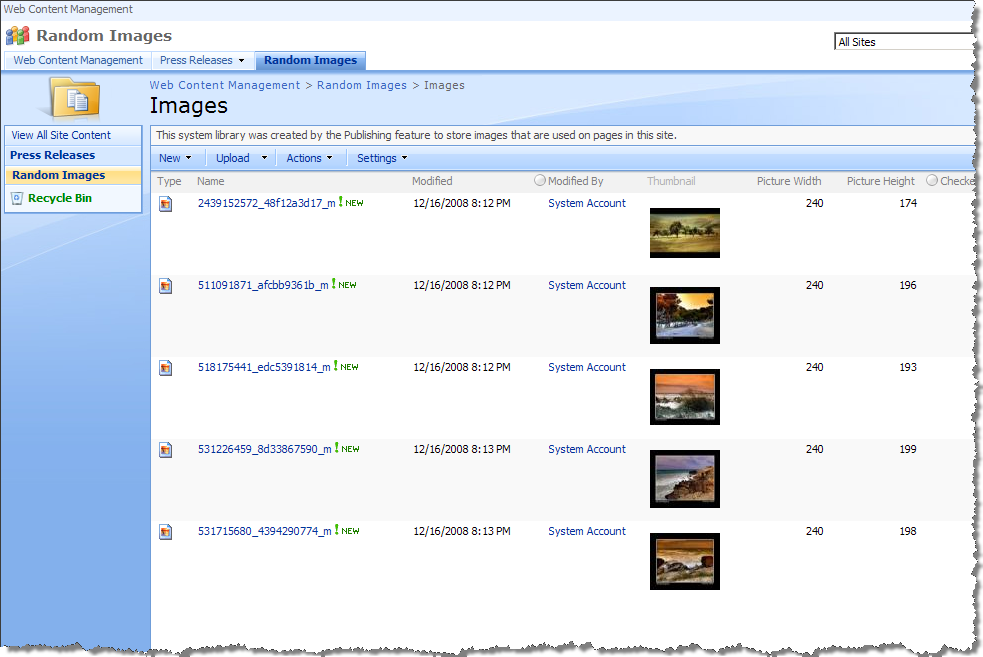
SharePoint images list with a couple of images in it

As soon as the images list is done, let’s proceed to the page.

Let’s start off with putting on the page the List View Web Part of the Images list:
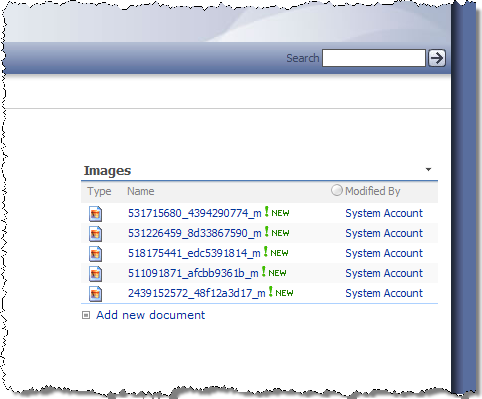
Images List View Web Part dropped on a publishing page.

Nothing special here. Now let’s do the magic. Let’s add a Content Editor Web Part, edit it, and paste in the Source Editor the following piece of HTML:

<script type="text/javascript" src="http://ajax.googleapis.com/ajax/libs/jquery/1.2.6/jquery.min.js"></script>
<script type="text/javascript">
  jQuery.jQueryRandom = 0;
  jQuery.extend(jQuery.expr[":"], {
    random: function(a, i, m, r) {
      if (i == 0) {
        jQuery.jQueryRandom = Math.floor(Math.random() * r.length);
      };
      return i == jQuery.jQueryRandom;
    }
  });
</script>
<script type="text/javascript">
$().ready(function() {
  var a = $("table.ms-summarystandardbody td.ms-vb2 a:random");
  a.parents("div[id^=WebPart]").html('<img src="' + a.attr("href") + '"/>');
});
</script>

What it does? First of all I extend the jQuery framework with the “:random” filter which allows me to pick a randomly chosen element. Then, as soon as the page has been loaded I select all the links from the Images Web Part and pick a random one to display. The last thing I do is to substitute the list of images with the random image I’ve just picked:
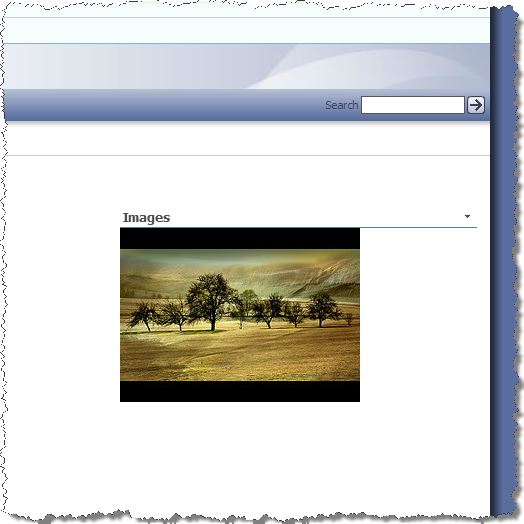
The JavaScript replaces the contents of the Images List View Web Part with a randomly picked image

That’s all!

Each time you load this page another image will be picked and displayed.

What’s next?

The example I’ve presented is quite simple. Because we’re using a common SharePoint list here, you could store some metadata together with the images and make them appear on the page as well. You could extend the script to add the title, description and maybe even a link to a different site: the sky is the limit.

Summary

Providing custom functionality doesn’t necessarily have to mean development and deployment. By just extending the standard SharePoint functionality with JavaScript you can easily create great features which can enhance the overall experience of your application. Using the jQuery framework you can simplify creating these enhancements even more. jQuery covers for you all the basics and allows you to focus on the functionality you to provide to your users.

57 Responses to “Showing random images in SharePoint 2007 using jQuery”

  1. Jeremy Thake Says:

    I just written a post discussing jQuery as the SharePoint Band Aid. Be interested to hear your thoughts:
    I\'ve just written a post discussing jQuery and SharePoint. Be interested to hear your thoughts… http://wss.made4the.net/archive/2009/02/23/jquery-the-sharepoint-band-aid.aspx

  2. Mary Kay Scott Says:

    Hi Waldek – I\'ve been trying to get this to work on my dev site. I am brand new to JQuery, but I already successfully implemented your Quote of the Day (reprised) sample, and it worked wonderfully, so I thought I would be able to handle this one. But it\'s not working :-(

    I\'m using an existing images list, and have added a web part to my page that shows the images I\'d like to have the random image pull from.

    Then I created the content editor web part, and pasted in the code you provided above. No go.

    I noticed that in the Quote of the Day Script CEWP, you actually include what list to pull the quotes from. Your sample here doesn\'t show any way to specify the list. Is it looking for all <img> tags?

    Would you mind explaining how the code works in a little more detail?

    Thanks for sharing these great ideas with all of us!

  3. Waldek Mastykarz Says:

    @Mary Kay Scott: it's all about getting the images selector right. In my example I pick a random link from a table cell with class "ms-vb2" nested in a table with class "ms-summarystandardbody". You might want check if these are available on your page. Additionally you might check if the List View containing the images included the links to the images or only their title. In my example I assumes using the standard Title column linked to the item.

  4. Mary Kay Scott Says:

    Ah, brilliant! My containers were slightly different. It works like a charm now. I love that it\'s so easy, no install required, and it\'s easily modified. Thanks so much!

  5. Waldek Mastykarz Says:

    @Mary Kay Scott: Great to hear I could help. Enjoy :D

  6. Alan Says:

    This is great – even works in SP2003, thanks! Is there a way to set the default width of the image? I would like to display this random image in a web part and it would be great if I could control the size, and maybe even import the image's description from the library as well.

  7. Waldek Mastykarz Says:

    @Alan: cool, I didn't know that (although it seems plausible now that we speak about it: it's all JavaScript, right?). You could change the image size by extending line 16 of the last code snippet (the one that adds to the html). You could do that either by adding a class or using in-line style definition.

  8. Alan Says:

    Great, thanks Waldek. I changed line 16 to the following:

    a.parents(\"div[id^=WebPart]\").html(\'<img src=\"\' + a.attr(\"href\") + \'\" WIDTH=250/>\');

    It works great! The only issue that I notice is that sometimes it will just display a box with a red X in it rather than an image from the library. So far I only have four images in the library – would this have anything to do with it? Thanks, Alan.

  9. Alan Says:

    It looks like the issue is that when it displays the image, the image shows. But when it displays a form (e.g., "…/Forms/DispForm.aspx?ID=3") the box with the red X appears. This seems to be the case with both SP2003 and MOSS. Is there a simple way around this?

  10. Waldek Mastykarz Says:

    @Alan: I'm not sure how this happens. It seems like somehow the link to the item gets mixed up with the images links. What you could do is to extend the JavaScript with some filtering to get rid of the item links and get only the images.

  11. Pete Says:

    What\'s the advantage of this over a custom Sort Expression and use the Random(1,9999) math expression ?

    I did have an issue displaying the 1 record, where i had to use conditional formatting to hide all but the first row. Ideally you\'d limit to 1 record or display in sets of 1. I have tried your method which works fine but i found there was a delay between displaying the list items and jQuery displaying the 1 image.

    Pete

  12. Waldek Mastykarz Says:

    @Pete: The one I could think of are simplicity and seamless experience with other jQuery selectors. As for alternatives: at the end of the day jQuery is nothing more than JavaScript. If you experience any specific issues with it you could always try to fall back on a native JavaScript solution.

  13. Renu Says:

    How do I extend the JavaScript with filtering to get rid of the item links and get only the images. I too get a red x while displaying the image slide show

  14. Waldek Mastykarz Says:

    @Renu: You would have to modify the selector. By default it picks all links. Because in the default view the only link points to the image it's okay, but as soon as you use a custom view you will have to change the selector to skip all non images. The solution depends on the view you're using.

  15. Chris W Says:

    Could you please give an example of how to extend the JavaScript with filtering to get rid of the form links to show just the images. I\'m having the same issue as Renu and Alan. Sometimes the image shows and sometimes it displays a form ( \"…/Forms/DispForm.aspx?ID=8\") and the box with the red X appears

  16. Waldek Mastykarz Says:

    @Chris W: As I've mentioned: it all depends on the view. What might work in one view doesn't have to work in another.

  17. Chris W Says:

    Thanks! I edited the current view and unchecked the display for thumbnail and now it works perfectly.

  18. Kim Cole Says:

    This is great, thanks! Do you have the code that would display random list items from a custom list (e.g. Quote of the day)?

  19. Waldek Mastykarz Says:

    @Kim Cole: here you go: http://www.endusersharepoint.com/?p=1264

  20. craig Says:

    I cannot get a picture to come up but I do have the writing below your html source code, and that pops up where the picture should be. I have a correct file path to the picture library also???? Please help!

  21. Waldek Mastykarz Says:

    @craig: have you change anything about the view/page?

  22. craig Says:

    NO

  23. Waldek Mastykarz Says:

    @craig: if I understand it correctly, you're using exactly THE SAME scenario as described in my article and somehow it doesn't work for you, correct?

  24. Philipp Says:

    Hi,

    works really great. But for any reason he's putting the focus on teh webpart after loading, which is quite annoying cause it is not on top of the website. So after page load the focus of the page is allways at the middle…

    any ideas??

  25. Waldek Mastykarz Says:

    @Philipp: I haven't experienced it myself. Have you tried setting the focus to your control after the jQuery script has been processed?

  26. Marcy Kellar Says:

    THis was very easy. Needed a way to satisify clients need for pictures of students by taking them out of the header banner. It was much too busy there. Thank you. This empowers my client to change the images after I leave.

    Thanks!

  27. Waldek Mastykarz Says:

    @Marcy Kellar: Great to hear that. Thanks! :)

  28. Rodrigo Rodrigues Says:

    I works like a charm for FF, Chrome, etc, but I can´t make this work in IE(6/7/8), any ideias?
    Thanks for the great trick

  29. Waldek Mastykarz Says:

    @Rodrigo: I've originally developed it in IE8 and tested using FF. It worked with both browsers. Do you have any more details about the error that you are getting?

  30. Christian Lopez Says:

    I have followed your directions to the T but I get a bit confused when you get to this part:

    "Then, as soon as the page has been loaded I select all the links from the Images Web Part and pick a random one to display. The last thing I do is to substitute the list of images with the random image I’ve just picked"

    How do you select the images? Is there a check box somewhere? I put in the jquery in the Source Editor, and then enter a link to a picture in the Content Link. When I hit apply all I get are a bunch of wingdings. What am I doing wrong here?

  31. Waldek Mastykarz Says:

    @Christian Lopez: it's all being done in JavaScript attached to the ListViewWebPart. You select the images by simply including them in the ListViewWebPart. The JavaScript does the rest of the job automatically for you.

  32. Christian Lopez Says:

    I\'ve discovered the issue. Your code reads images in a Document Library as opposed to an Image Library.

    Once I created a Document Library and uploaded pictures in there, the code works perfectly.

    Thanks!

  33. Waldek Mastykarz Says:

    @Christian Lopez: The choice for a Document/Image Library probably results in different ids. I'm quite sure you should be able to achieve the same results using the Image Library. The only thing you would have to do is to examine the generated HTML and compare it to the one when using the Document Library.

  34. Eric Says:

    It's randomizing. However I've multiple doc libs. Anyway i could target one DL?

  35. Waldek Mastykarz Says:

    @Eric: as far as I know every Web Part you drop on the page gets a unique ID. Using that ID you should be able to limit the slideshow to a single list.

  36. Eric Says:

    Hmmm … will try that. Thanks for the tips.

  37. wallou Says:

    hi waldek.

    i was reading your post about using jquery for random images in sharepoint when i noticed something which can be useful for me on your first screenshot.

    In your image list, you have the columns :"thumnbail","width" and "height".
    How do you get this? i dont find it when i add anew column,i'm running WSS 3.0 SP1.
    I would like to have thumbnails in my list instead of big-sized pictures.

    Thx for your help

  38. wallou Says:

    hi waldek.

    i was reading your post about using jquery for random images in sharepoint when i noticed something which can be useful for me on your first screenshot.

    In your image list, you have the columns :"thumnbail","width" and "height".
    How do you get this? i dont find it when i add anew column,i'm running WSS 3.0 SP1.
    I would like to have thumbnails in my list instead of big-sized pictures.

    Thx for your help

  39. Waldek Mastykarz Says:

    @wallou: what kind of library have you used: Pictures Library or just a regular Document Library?

  40. Tim Says:

    I appreciate your sharing this. I'm new at jquery so this is great info. How do you get the corresponding title that goes with the random image? I added title to the view as the last column. I'm able to pull the last one doing var c = $(" tr td.ms-vb2:last").

  41. Rich Says:

    I get a red x for some pictures. Any idea what is causing the sporadic results. Some pictures display just fine.

  42. Waldek Mastykarz Says:

    @Rich: It could be that the image selector is picking too much – not only images but also other elements, which cannot be displayed as images.

  43. Rich Says:

    I just created a new picture library and I made sure that all the pictures are the same size. They all came from the same digital camera. What do you mean by image selector and how do I control it?

  44. Rich Says:

    I removed the HTML and I am able to view the pictures just fine. Any ideas?

  45. Charles Santucci Says:

    Very good tip. Working great !
    I cannot modify the SharePoint server since it a corporate one, then adding a new WebPart is not an option.
    Hopefully, some very clever people have always a solution.
    Thanks Waldek ! You are one of them !

  46. Waldek Mastykarz Says:

    @Charles: Adding a Web Part is the only option for that I'm afraid. For that you don't need to "modify" SharePoint. All you need to do is to edit the page, or do you mean that you don't have write permissions?

  47. Praveen Says:

    Hello Waldek,
    Will you pls help me out how to get the same Image rotator functionality from a custom list for which am having 3 fields(Image attachment, Title, URL & Text)?
    Thanks in advance !!!

  48. Waldek Mastykarz Says:

    @Praveen: What is your challenge exactly? What have you already tried and at which moment are you getting stuck?

  49. Praveen Says:

    Hello Waldek,
    Many thanks for the Quick reply !
    And i need to have a webpart which should display images only randomly with the some set of interval from a custom list definition as well should navigate to the page where that actual image resides for click on the image.

    Pls help me out since i had tried all the approaches in your site where this all are getting the images from Picture Library i believe.

    Many thanks in advance.

  50. Praveen Says:

    And i also need to say that am on WCM Publishing portal site development, and i had went with PageLayouts with custom content types. Using this Page Layouts the article pages will be created with Fields called Image,Title etc..

    And for my landing page i need to have this webpart with Image rotation where the end user clicks shouls navigate to the Article Page if they likes the Image :) along with little description next to the image.

    Hope i made you clear. Really your site shows me new way of easier approaches for developers.
    Really like your site very Much.

    Thanks.

  51. Waldek Mastykarz Says:

    @Praveen: I think I understand what you need. What I'm missing is the things that you've already tried and the things that you're stuck on.

  52. PS3 Says:

    Hi, Thanks for this post. I do little UI modification for the sites that work on and not a developer. I have done exactly the step you mentioned and was able to see the Image getting changes..but how do i hide the Content Web part…? Even after i delete the tile it shows as untitled in the page. Thanks for your help.

  53. Waldek Mastykarz Says:

    All you have to do is to edit the Web Part and in the Appearance group, set the value of the Chrome property None. That should make the CEWP 'invisible'.

  54. Servé Hermans Says:

    Even old posts are useful! Thanks for sharing.
    One addition that might be useful as well could be the following article: http://blogs.pointbridge.com/Blogs/johnson_bert/Pages/Post.aspx?_ID=20#EntryTabs

    Bert uses the ddwrt function Random() and XSL to randomize and limit the results of a dataview or content by query web part. Great stuff as well.

    Thanks for sharing!

  55. Jason Says:

    "as far as I know every Web Part you drop on the page gets a unique ID. Using that ID you should be able to limit the slideshow to a single list."

    Oh please tell me how to incorporate the unique wep part id :( I'm pretty sure that it has to be part of var a = $("table.ms-summarystandardbody td.ms-vb2 a:random"); but I cannot figure out how.

  56. Jason Says:

    Thanks to Twitter I was able to find a solution: var a = $("div.[id^=WebPartIDHere] table.ms-summarystandardbody td.ms-vb2 a:random");

    Now to figure out how to display metadata columns from the list view ;)

  57. Sam Erol Says:

    Well, If you are looking for Rotating Banners for SharePoint, This will help: Rotating Banner for SharePoint using jQuery

    Sam Erol

Leave a Reply

WP Theme & Icons by N.Design Studio
Entries RSS Comments RSS
Copyright © 2007 - 2013 Waldek Mastykarz

Creative Commons License