Webdesigners vs. SharePoint: the body id
Body id is a cool webdesign trick that allows designers to easily alter the layout of a page using nothing more than a single property and some CSS styling. Using the body id you can define one HTML page structure for the whole site and then, by changing the single value of the body id attribute, you can create new experiences by styling the different pieces of the page in a totally different way. While it sounds very easy and it is very easy with HTML, this trick can get very challenging when used with SharePoint.
Anatomy of a body id
Consider the following HTML:
<div id="header" class="section">
Header
</div>
<div id="navigation" class="section">
Navigation
</div>
<div id="main" class="section">
Body
</div>
<div id="subpane" class="section">
Subpane
</div>
Using the body id trick you can make it easily look like
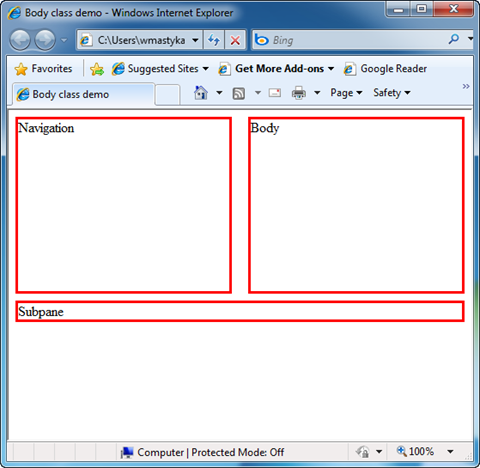
or like
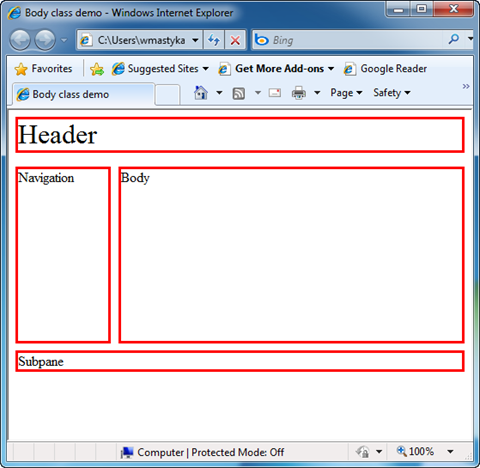
All that you have changed between the first and the second UI is the value of the body id attribute. Impressive, isn’t it?
How does it work? The whole thing consists of two pieces: the id attribute added to the body tag:
<body id="content">and CSS that formats the page layout using the body id information:
.section
{
    border: 3px solid red;
}

body#home #header { display: none; }

body#home #navigation
{
    width: 47%;
    float: left;
    height: 200px;
}

body#home #main
{
    width: 47%;
    margin-bottom: 0.5em;
    height: 200px;
    float: right;
}

body#home #subpane
{
    clear: both;
}

body#content #header
{
    font-size: xx-large;
    margin-bottom: 0.5em;
}

body#content #navigation
{
    float: left;
    width: 20%;
    height: 200px;
    margin-right: 0.5em;
}

body#content #main
{
    float: right;
    height: 200px;
    width: 76%;
    margin-bottom: 0.5em;
}

body#content #subpane
{
    clear: both;
}
Using the body id trick simplifies creating different layouts making it very efficient and easy to manage. And using the information obtained from the Content Management System (CMS) you can dynamically define the body id and change the layout without a single change in the page markup.
The SharePoint challenge
Quite often the translation of webdesign to HTML is separated from the CMS implementation and is often done by different teams. Not surprisingly both processes are very different and require different sets of skills and experience. And this is where the SharePoint challenge has its origins: webdesigners have no clue how SharePoint works and what its limitations are and once the HTML is done, it’s too late for SharePoint developers to throw it around to make it fit into SharePoint. Because webdesigners don’t know SharePoint’s boundaries, they do what’s most efficient for them, not knowing that they will complicate the implementation of their markup into SharePoint a lot. So why can’t the HTML with body id be implemented in SharePoint in the first place?
As SharePoint is built on top of ASP.NET, let’s have a look at some possibilities of how to include dynamic values for attributes.
Wrap it up
Probably the very first solution that you might think of is to create a custom webcontrol and set the value of the id attribute during its lifecycle. This could be done using the following code snippet:
[ParseChildren(false)]
public class Body : WebControl
{
    public Body() : base(HtmlTextWriterTag.Body)
    {

    }

    protected override void OnPreRender(EventArgs e)
    {
        base.OnPreRender(e);

        Attributes["id"] = GetBodyId();
    }

    private static string GetBodyId()
    {
        string bodyId = "content";

        if (SPContext.Current != null && SPContext.Current.ListItem != null && PublishingPage.IsPublishingPage(SPContext.Current.ListItem))
        {
            PublishingPage page = PublishingPage.GetPublishingPage(SPContext.Current.ListItem);
            if (page.Layout.Name.Equals("WelcomeSplash.aspx", StringComparison.InvariantCultureIgnoreCase))
            {
                bodyId = "home";
            }
            else
            {
                bodyId = "content";
            }
        }

        return bodyId;
    }
}
In order to use it you would register the control with your Master Page and then replace the default body tag with your control:
<MyControls:Body runat="server">...While it does the job, and outputs a beautiful body tag with a dynamic ID attribute, it introduces one serious problem. If you open your Master Page in SharePoint Designer in Design View all that you will see is a blank screen:

The first thing that you might think, is that the control requires some extra code that will allow SharePoint Designer to render the contents of the page, just like it does with a regular ASP.NET Panel. Unfortunately, that doesn’t help either. To check this, you can create a new control and make it inherit from the Panel control. The same behavior occurs in SharePoint Designer: the Design View is not being displayed. We’ve just managed to break the platform.
Express yourself
When I saw the default behavior of SharePoint Designer when wrapping the contents of the body in a custom control, I almost immediately thought of another method to get the body id rendered: Expression Builders.
Expression Builders are a great, and it turns out a not-that-well-known, part of ASP.NET that allows you to dynamically set values of server controls in ASP.NET. If you’ve worked with SharePoint a little, you’re probably familiar with at least two of SharePoint’s Expression Builders: Resources and SPUrl.
Comparing to a server control, an Expression Builder is a little more complex to build. The complexity has to do with the Code Expression that has to be returned during the compilation or parsing process. This Code Expression will be executed every time the Expression Builder is requested and will return some value based on the requested property on some other condition.
The Expression Builder to set the body id could look something like this:
public class BodyEB : ExpressionBuilder
{
    private const string BodyIdId = "BodyId";

    public override CodeExpression GetCodeExpression(BoundPropertyEntry entry, object parsedData, ExpressionBuilderContext context)
    {
        CodeExpression[] codeExpression =
        {
            new CodePrimitiveExpression(entry.Expression.Trim()),
            new CodeTypeOfExpression(typeof(String))
        };

        return new CodeCastExpression(typeof(String),
            new CodeMethodInvokeExpression(
                new CodeTypeReferenceExpression(typeof(BodyEB)), "GetEvalData", codeExpression));
    }

    public override object EvaluateExpression(object target, BoundPropertyEntry entry, object parsedData, ExpressionBuilderContext context)
    {
        return GetEvalData(entry.Expression);
    }

    public override bool SupportsEvaluate
    {
        get
        {
            return true;
        }
    }

    public static object GetEvalData(string expression)
    {
        string value = null;

        switch (expression)
        {
            case BodyIdId:
                value = GetBodyId();
                break;
        }

        return value;
    }

    private static string GetBodyId()
    {
        string bodyId = "content";

        if (SPContext.Current != null && SPContext.Current.ListItem != null && PublishingPage.IsPublishingPage(SPContext.Current.ListItem))
        {
            PublishingPage page = PublishingPage.GetPublishingPage(SPContext.Current.ListItem);
            if (page.Layout.Name.Equals("WelcomeSplash.aspx", StringComparison.InvariantCultureIgnoreCase))
            {
                bodyId = "home";
            }
            else
            {
                bodyId = "content";
            }
        }

        return bodyId;
    }
}
Then in the Master Page you would modify the body tag to include the call to the Expression Builder:
<body id="<%$UI:BodyId %>" runat="server" scroll="no" onload="if (typeof(_spBodyOnLoadWrapper) != 'undefined') _spBodyOnLoadWrapper();" class="nightandday">Because Expression Builders can only be used with server controls, you have to add runat=”server” to the body tag. Save the changes, hit F5 in the browser and guess what: it doesn’t work. It turns out that you cannot set the control’s ID using an Expression Builder. So much for a body id. What about a body class? Perhaps not perfect but very similar to the body id idea? Unfortunately yet another error: this time ASP.NET says that the onload attribute is not allowed.
The very last thing that you could do, to get this done, is to post process the rendered HTML and add the body ID there. Although it would work, such approach would have very poor performance and could cause your whole site to become very slow.
So is there any other way to make this happen?
Introducing: Wrap it up v2
One way that you could get this done is to use an extra div to set the body class:
<div runat="server" class="<%$UI:BodyId %>">In modern browsers you could use the :first-child CSS selector to refer to the wrapper div:
body div.home:first-child { ... }And if you need to support older browsers as well, you could add an ID to your control.
Important The ID that you specify is not the ID that will end up in the generated HTML. As the div is a server control (runat=”server”) the ID will be prepended with the ID of the div’s parent control to define it uniquely. So very likely you will end up with ID of ctl00_yourId
Although this method is not perfect it allows you to use a wrapper to alter your page layout dynamically. And because a div doesn’t have a semantic meaning it doesn’t obstruct the content of the page.
Summary
There are a lot of tricks that webdesigners use to deliver rich and dynamic experiences. When working with a Content Management System it is however important to take a look at its boundaries and to check if everything that the designer had in mind, is achievable in a way that won’t break the CMS. Using a body id is an example of such trick: although the idea seems to be very simple when working with static HTML and CSS, it can get really challenging when combined with SharePoint.
Technorati Tags: SharePoint,SharePoint 2010,Webdesign