Yesterday I published an article with an example on how you can display a random image in SharePoint 2007 using jQuery. With only a couple of lines of JavaScript you can pick a random image from an Image Library and display it on a page. But did you actually know that with a little more effort you can create your own images slideshow?
Images slideshow: the ingredients
Just like in the previous example, let’s start with creating an Image Library, adding some pictures and adding the Images List View Web Part to the Page:
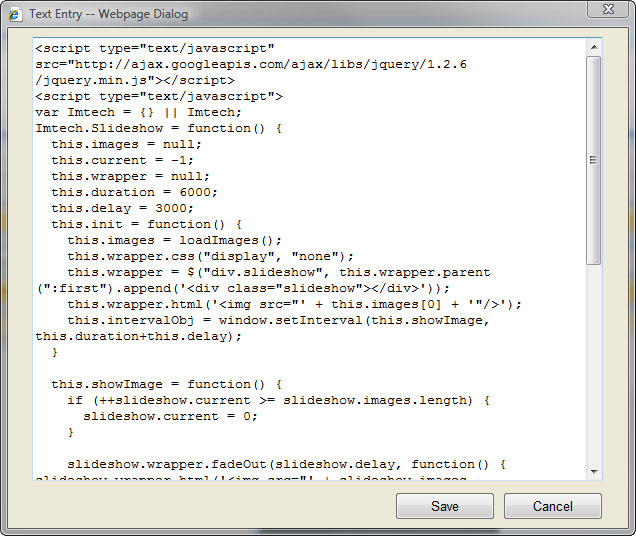
Now let’s add the JavaScript. Let’s start with adding a Content Editor Web Part and opening it in the Source Editor mode. Paste the following code:
<script src="http://ajax.googleapis.com/ajax/libs/jquery/1.2.6/jquery.min.js" type="text/javascript"></script>
<script type="text/javascript">
var Imtech = {} || Imtech;
Imtech.Slideshow = function() {
this.images = null;
this.current = -1;
this.wrapper = null;
this.duration = 6000;
this.delay = 3000;
this.init = function() {
this.images = loadImages();
this.wrapper.css("display", "none");
this.wrapper = $("div.slideshow", this.wrapper.parent(":first").append('<div class="slideshow"></div>'));
this.wrapper.html('<img src="' + this.images[++this.current] + '"/>');
this.intervalObj = window.setInterval(this.showImage, this.duration + this.delay);
}
this.showImage = function() {
if (++slideshow.current >= slideshow.images.length) {
slideshow.current = 0;
}
slideshow.wrapper.fadeOut(slideshow.delay, function() {
slideshow.wrapper.html('<img src="' + slideshow.images[slideshow.current] + '"/>');
slideshow.wrapper.fadeIn(slideshow.delay);
});
}
var loadImages = function() {
var images = $("table.ms-summarystandardbody td.ms-vb2 a");
var imagesList = new Array(images.length);
var i = -1;
images.each(function() {
imagesList[++i] = this.href.replace('about:', '');
});
return imagesList;
}
};
var slideshow;
$().ready(function() {
slideshow = new Imtech.Slideshow();
slideshow.wrapper = $("table.ms-summarystandardbody td.ms-vb2 a").parents("div[id^=WebPart]");
slideshow.init();
});
</script>
And that’s all you need to make the slideshow work:
How does it work?
As you’ve noticed the code is slightly more complex than in the previous article. First of all the slideshow is initiated with the default settings. Before we can initiate the slideshow we need to provide a CSS path to the HTML of the Images List View Web Part.
As the initiation process starts, the available images are loaded and stored in an array. The first image is being displayed. The slideshow starts after the defined period of time (by default 6 seconds).
If you want, you can tweak the duration and delay of the slideshow. The duration defines how long an image is being displayed and the delay is being used by jQuery for fading images. You can change the default values as follows:
Each x seconds the showImage function is being called. This function is responsible for fading and displaying images.
Summary
Once again jQuery proves how easy custom functionality can be created using just a couple of lines of JavaScript. The best of it all? It’s all done client-side and doesn’t require deployment of custom code on the server. Because the custom functionality leverages the SharePoint platform you can use views to do some filtering and audiences to target the content to the right group of users.


January 26th, 2009 at 4:30 pm
Really great stuff!
The only thing I would be very thankful to have more information (source code) on is how to include a link as well. So that I can upload images into the Images library, add the URL as metadata, and then in the slide show have each image linked to a page/site. As I don't know how to write the code for this myself I would really be interested in recieving an example of this.
Thanks again for a really nice feature!
January 26th, 2009 at 6:14 pm
You would have to basically extend the script in three places: retrieving the meta data from the List View Web Part, adding it to the images array and lastly extending the image HTML to include the link. Because the array is flat, I would advise you to replace it with an image object as image = { url: "Pages/page.aspx", src: "image.gif" }
February 23rd, 2009 at 7:07 pm
Hi,
I am so happy with your implementation. My question, can this code be tweaked to create a marquee effect from an Announcement list for instance.
Cheers
February 23rd, 2009 at 8:07 pm
@shola lawani: Thank you. I'm pretty sure the code could be tweaked to fit your requirements of creating a marquee effect from an Announcements list.
April 26th, 2009 at 1:04 am
Nice work….I must have missed it, but where are you referencing the name of the Picture Library(List)?
April 26th, 2009 at 9:28 am
@CG: The first reference to the Picture Library is being done using the List View Web Part. As for the JavaScript code: in line 30 I'm retrieving all anchors which point to the images you want to display.
April 30th, 2009 at 1:06 am
I created a new image library and used your code. Between the images it shows a '../DispForm.aspx?ID=4' 'image not found red sign. The ID is randomly generated. Is there any way to fix that? I have seen if I choose the built in 'Image' list that does not happen. Thanks for your help.
Farid
April 30th, 2009 at 7:58 am
@Farid Khan: You would have to step through the JavaScript code and find out where does the ID=4 link come from.
April 30th, 2009 at 7:50 pm
I created a document library instade of picture library and it works fine!
May 1st, 2009 at 10:18 pm
Great stuff. Since I\'m not a web developer, I just did the cut-and-paste thing. Worked well except it only displayed the first 4-6 images depending upon which image library I referenced in the list web part. Any ideas how to make the show cycle through all the images in the library?
May 2nd, 2009 at 9:30 am
@David Donley: the code should pick all images from the library. The only thing it depends on is the List View Web Part for your Images Library. If you pick one with a view that displays all the available images, all of them should be included in the slideshow.
May 13th, 2009 at 12:23 pm
Hi, great work,
however I have a small problem, every second picture is not showd in the slideshow, instead it displays a red cross. Do you know what could be wrong?
I use a standard picture library with a couple of pictures, no custom view or nothing else.
/Kenth
May 13th, 2009 at 12:37 pm
@Kenth Jansson: not really. You would have to debug the JavaScript to find out where the problem occurs.
May 18th, 2009 at 7:13 pm
Hi,
I love this slide show, it works great!! I have one question about the display. How can I tweak the code so that the Image Title (or description) appears along with the image in the slideshow?
May 18th, 2009 at 7:42 pm
@Kim Cole: First of all you would have to modify the jQuery selector to retrieve complete rows instead of links only. Then you would have to store the retrieved information in the array. At this moment the images are being stored in a one-dimensional array which stores URL's only. If you would like to store additional information you would either have to add some additional dimensions to the array or wrap the image into an object with properties corresponding to your properties.
May 22nd, 2009 at 8:21 pm
Thanks for the reply, but that is a little over my head!
May 27th, 2009 at 10:36 pm
Thank you for this wonderful slideshow. It works perfectly when I place the code [via a CEWP, of course] directly on the Picture Library page itself. However, when attempting to create a Picture Library on a WP or any page, looks like it skips or shows an X red mark before showing the next image. Any way to fix this? Thanks so much!
Tammy
June 1st, 2009 at 7:50 am
@Tammy T.: I'd say that it's because of the jQuery selector responsible for retrieving the pictures from the view. You would have to modify it to fit your situation (HTML rendered by SharePoint).
June 16th, 2009 at 4:22 pm
Waldek, I had the same problem with my page that the others had where every other image was displaying the red X. We have MOSS SP1…we have not yet applied SP2, so I'm wondering if that could be the issue. Anyway, I created a Picture Library called "Flower Images" and loaded my flower pictures in it. I looked at View->Source on that list page, and copied the code into Visual Studio. Your "loadImages" function grabs all the images with this line "var images = $("table.ms-summarystandardbody td.ms-vb2 a");" I looked at my source code for the list, and found the table where the class matched "ms-summarystandardbody", then looked down to where the table cell class matched "ms-vb2". I could see that SharePoint was creating another cell in the table that was causing the display of the red X. My code looked like this (note the two anchor tags):
<tr class="ms-alternating">
<td class="ms-vb2">
<a href="/IS%20Teams/Web%20Team/sandbox/Flower%20Images/Forms/DispForm.aspx?ID=8">
<img border="0" alt="Thumbnail" src="http://isweb.fahc.org/IS%20Teams/Web%20Team/sandbox/Flower%20Images/_t/DSCN0369copy_jpg.jpg">
</a>
</td>
<td class="ms-vb2">
<a onfocus="OnLink(this)" href="/IS%20Teams/Web%20Team/sandbox/Flower%20Images/DSCN0369copy.jpg"
onclick="return DispEx(this,event,'TRUE','FALSE','FALSE','SharePoint.OpenDocuments.3','0','SharePoint.OpenDocuments',",",",'6','0','0','0x7fffffffffffffff')">
DSCN0369copy</a>
</td>
<td class="ms-vb2">
<span dir="ltr">100 x 91</span>
</td>
</tr>
So, the anchor with the "href" was causing the red X. I realized that I needed the jQuery to only return me the anchors with the "onfocus" attribute in them. I changed one line of your code to this, which solved my problem:
var images = $("table.ms-summarystandardbody td.ms-vb2 a[onfocus]");
Maybe this will help others troubleshoot their JavaScript issues, in combination with the tutorials at http://docs.jquery.com. Thanks, Suzanne
June 16th, 2009 at 7:55 pm
@Suzanne: thanks for your feedback. I also hope it's going to help someone.
June 26th, 2009 at 5:50 pm
I added the code but it doesnt work
June 27th, 2009 at 11:14 pm
@Jimmy: could you provide any more information?
July 17th, 2009 at 11:19 am
Really helpfull! Thanks for sharing this info.
Good example of a client side customization!
August 24th, 2009 at 4:58 pm
Hi there,
Thanks for the code. It\\\'s working great. FYI, I changed line 30 to:
var images = $(\\"table.ms-summarystandardbody td.ms-vb2 a[onfocus]\\");
as well, and there\\\'s no longer a red cross.
Also, is there any way to center these images? JQuery n00b. Thanks,Eric
August 27th, 2009 at 9:47 pm
Hi Waldek
Can you review my code. I can't get the slideshow to work. I not sure if i'm referencing correctly my picture library.
var Imtech = {} || Imtech;
Imtech.Slideshow = function() {
this.images = null;
this.current = -1;
this.wrapper = null;
this.duration = 6000;
this.delay = 3000;
this.init = function() {
this.images = loadImages();
this.wrapper.css("display", "none");
this.wrapper = $("div.slideshow", this.wrapper.parent(":first").append("));
this.wrapper.html(");
this.intervalObj = window.setInterval(this.showImage, this.duration + this.delay);
}
this.showImage = function() {
if (++slideshow.current >= slideshow.images.length) {
slideshow.current = 0;
}
slideshow.wrapper.fadeOut(slideshow.delay, function() {
slideshow.wrapper.html(");
slideshow.wrapper.fadeIn(slideshow.delay);
});
}
var loadImages = function() {
var images = $("table.ms-summarystandardbody td.ms-vb2 a");
var imagesList = new Array(images.length);
var i = -1;
images.each(function() {
imagesList[++i] = http://Site/Departments/InfoSystems/ist/WCM/Forms/AllItems.aspx('about:', ");
});
return imagesList;
}
};
var slideshow;
$().ready(function() {
slideshow = new Imtech.Slideshow();
slideshow.wrapper = $("table.ms-summarystandardbody td.ms-vb2 a").parents("div[id^=WebPart]");
slideshow.init();
});
August 27th, 2009 at 9:53 pm
@Dmanrez: do you get any errors while executing the script? You might want to try to debug it using Visual Studio or Firebug just to get some more information on where the things go wrong, like getting null references or improper objects.
August 27th, 2009 at 10:13 pm
No I don't recieve any errors when executin the script. When exiting edit mode and viewing the CWP it is just blank. Not sure how to test it out in visual studio or firebug. Did I input the correct url for referencing the image library.
August 27th, 2009 at 10:16 pm
@Dmanrez: have you followed the exact steps as mentioned in the article? You can't provide a URL to a Picture Library. Instead you have to add a List View Web Part to the page and the script should automatically pick it up. If you're using custom branding you would have to modify the jQuery selectors so that they can retrieve the images list from the List View Web Part.
August 28th, 2009 at 8:44 am
Hi Waldek,
Thanks for nice article. I am trying ur code but it is not displaying anything. I have added the Pic Lib instance (as instance of List View web part) & Content Editor on default.aspx. If missed any step plz suggest.
Thanks in advance.
August 28th, 2009 at 11:40 am
@Saud: Do you have any other Web Parts on the page or are the List View Web Part for the Picture Library and the Content Editor Web Part the only one? Additionally, are you using some custom branding or the SharePoint default one?
August 28th, 2009 at 11:49 am
Thanks for response. Actually, default page contains some other custom webparts. I don\'t know if it will affects the functionality. Plz suggest.
August 28th, 2009 at 1:29 pm
Hi Waldek
Thanks for sharing this code, I have it working now. I noticed in a previous posting there was a question about hyperlinking the pictures from metadata. Do you happen to have code for this.
August 28th, 2009 at 1:43 pm
@Saud: other Web Parts can require different jQuery selectors. I suggest you first check if the code works on an empty page with only two Web Parts as described above and then extend the page to meet your requirements.
@Dmanrez: no I don't have the code but it shouldn't be that difficult to make. Let me know how far you come
August 29th, 2009 at 1:33 am
Thanks for sharing this! In 5 minutes I've done what I couldn't do after a week with the AJAX slideshow control from MS AJAX Toolkit. This is great!!!
August 30th, 2009 at 3:27 am
Here is my "thank you" code. Replace the images list with a Content Query Webpart that uses the default [image on left] presentation and pulling for, say, article pages. This pulls the images from the list for the slideshow, adds the alt tag info, and wraps the image in an anchor tag pointing to the page – no border around the image.
Enjoy!! :)
var showcase = {} || showcase;
showcase.Slideshow = function() {
this.images = null;
this.current = -1;
this.wrapper = null;
this.duration = 6000;
this.delay = 3000;
this.init = function() {
this.images = loadImages();
this.wrapper.css("display", "none");
var start = ++this.current;
this.wrapper = $("div.slideshow", this.wrapper.parent(":first").append("));
this.wrapper.html('' );
this.intervalObj = window.setInterval(this.showImage, this.duration + this.delay);
}
this.showImage = function() {
if (++slideshow.current >= slideshow.images.length) {
slideshow.current = 0;
}
slideshow.wrapper.fadeOut(slideshow.delay, function() {
slideshow.wrapper.html('');
slideshow.wrapper.fadeIn(slideshow.delay);
});
}
var loadImages = function() {
var images = $("div.item div.image-area-left img");
var pageurls = $("div.item div.image-area-left a");
var imagesList = [];
var i = 0;
images.each(function() {
imagesList[i] = [];
imagesList[i]['imageurl'] = this.href.replace('about:', ");
imagesList[i]['imagealt'] = this.alt;
imagesList[i]['pageurl'] = pageurls[i];
i++;
});
return imagesList;
}
};
var slideshow;
$().ready(function() {
slideshow = new showcase.Slideshow();
slideshow.wrapper = $("div.item div.image-area-left img").parents("div[id^=WebPart]");
slideshow.init();
});
August 30th, 2009 at 9:28 am
@SueB: cool! Thanks for the code!
September 29th, 2009 at 3:59 pm
This is very helpful for me to show images…thanks a lot.
October 7th, 2009 at 6:48 pm
Great post here. Can this be adapted to run as banner type item at the top of a web page? I would like to be able to show rotating images of our area across the entire top portion of the page. Any help is appreciated.
Danny
October 7th, 2009 at 6:55 pm
@Danny: Although I don't have a working example for your case I'm quite sure it can be done. After all it's all about displaying the images the way you want to. I suggest you try to find a jQuery plugin that is as closest to what you want achieve as possible and try to take it from there instead of doing this from scratch.
November 19th, 2009 at 1:53 am
This looks great and I have it working with no problems but I was wondering if it is possible to add some basic navigation or functionality to start / stop the slideshow?
Thanks
November 19th, 2009 at 8:26 am
@Simon: of course you would be able to do that. All you would have to do is to extend the JavaScript with a function that would remove the interval (stop) and add the required HTML markup which would make up the button. To start the slideshow again you should be able to reuse the init() function.
November 23rd, 2009 at 2:16 pm
Thanks very much…one more question. Ive now added a button to trigger the init() funciton to allow users to go to the 'Next slide'; but is there a way to go backwards in the slideshow ie. 'Previous Slide'?
Simon
November 24th, 2009 at 3:38 am
Visit http://www.SOCOM.mil and http://www.socom.mil/FAMILY_READINESS/Pages/default.aspx
to see this running with the CQWP.
Public Affairs and Family Readiness keep the site fresh by adding articles based on custom SharePoint page layouts. The page layouts allow for 1 or more pictures but only the first picture is used for the slideshow. the CQWP picks up the new pages automatically and adds the images to the list.
November 25th, 2009 at 12:30 pm
@Simon: Unfortunately not. It is something you would have to do yourself. Basically it would resemble a lot the showImage function with the only difference that it would subtract 1 from the current image index.
January 14th, 2010 at 7:01 pm
Can you resize the images via the script? If so how?
January 29th, 2010 at 7:58 pm
Waldek – is there a way to resize the images?
January 29th, 2010 at 8:38 pm
Is there any licensing associated with this? Can I use it on my company website?
January 29th, 2010 at 8:39 pm
Is there any licensing associated with this? Can I use it on my company website??
January 30th, 2010 at 2:01 pm
@John: There is no licensing associated and you are free to use it. Please note, that this solution is provided as-is and there is no guarantees/support whatsoever.
January 30th, 2010 at 2:07 pm
@John: In line 14 and 24 there is an img tag. You can either include the dimensions there or you can just use CSS to do the job.
February 3rd, 2010 at 9:47 pm
Thanks for the code! I have it working successfully on my site. One big problem, though: I want to use several different list view web parts on my page (only one of which is a picture library. The others are mostly document libraries). When I add one of the document list view web parts, the code latches onto it and tries to cycle through those documents instead of through the picture library that was already there. I need to be able to target a specific list view web part for the code to cycle through. Otherwise, I can only have a single list view web part on a page. Is this possible?
February 4th, 2010 at 7:55 am
@Lezlie: sure! All you would have to do is to modify the selector in line 44 that picks up the right Web Part. Right now it picks up every Web Part on the page. By modifying it you could make it point to your specific Web Part.
February 5th, 2010 at 12:25 am
Thanks for your reply. I did try your suggestion, but am having difficulty. When you referred to line 44, I assumed you were referring specifically to the "div[id^=WebPart]" statement. My guess is that this looks for the keyword "WebPart at the beginning of any webpart ID (which would be all of them). I assumed that I would need to replace "WebPart" with the ID of the web part that I want to hold the library of pictures to display. I looked in the code and found a long alphanumeric string that seemed to be the id of the web part in question. ("{AC45E1A4-FB6C-458D-A7DF-F3802CAED037}"). I replaced "WebPart" with this ID, but it didn't work. Can you see what I'm doing wrong? Is ID that I cited above a valid web part ID?
February 6th, 2010 at 2:28 am
I figured it out. I'm very new to jQuery, so it wasn't obvious to me how to access a specific WebPart. But I ended up seeing that the "Summary" table attribute contained my web part name. At that point, I just modified instances of $("table.ms-summarystandardbody td.ms-vb2 a");" to make them specific: $("table[Summary^=WebPartName].ms-summarystandardbody td.ms-vb2 a");, where "WebPartName" was the specific name of my web part. That seems to have solved my problem, and I can now add additional web parts to my page without worrying about them being used in the slide show.
February 6th, 2010 at 4:01 pm
@Lezlie: great to hear you got it working :D …and now you know jQuery ;)
February 8th, 2010 at 9:41 am
Hy. Thanks this is very nice. But can I also use this for a slideshow in the header?
Regards,
Reinhard
February 8th, 2010 at 7:14 pm
@Reinhard: sure. What the script does, is it gets a list of images and displays them as a slideshow. You could modify the script to get the images not from an Image Web Part but some other source and make it display the images in the header.
February 10th, 2010 at 11:13 am
Hi Waldek. I tried it several times without success.
I changed the this.images = "\\server\C$\BilderStore";
So I think this should work, but it doesnt. So will I need the Images List View Web Part on the pages or should itwork work without. My souce look like:
var Imtech = {} || Imtech;
Imtech.Slideshow = function() {
this.images = null;
this.current = -1;
this.wrapper = null;
this.duration = 6000;
this.delay = 3000;
this.init = function() {
this.images = "\\server\C$\BilderStore;
this.wrapper.css("display", "none");
this.wrapper = $("div.slideshow", this.wrapper.parent(":first").append("));
this.wrapper.html(");
this.intervalObj = window.setInterval(this.showImage, this.duration + this.delay);
}
this.showImage = function() {
if (++slideshow.current >= slideshow.images.length) {
slideshow.current = 0;
}
slideshow.wrapper.fadeOut(slideshow.delay, function() {
slideshow.wrapper.html(");
slideshow.wrapper.fadeIn(slideshow.delay);
});
}
var loadImages = function() {
var images = $("table.ms-summarystandardbody td.ms-vb2 a[onfocus]");
var imagesList = new Array(images.length);
var i = -1;
images.each(function() {
imagesList[++i] = this.href.replace('about:', ");
});
return imagesList;
}
};
var slideshow;
$().ready(function() {
slideshow = new Imtech.Slideshow();
slideshow.wrapper = $("table.ms-summarystandardbody td.ms-vb2 a").parents("div[id^=WebPart]");
slideshow.init();
});
February 10th, 2010 at 11:14 am
Hi Waldek. I tried it several times without success.
I changed the this.images='\\server\\C$\\BilderStore\';;
So I think this should work, but it doesnt. So will I need the Images List View Web Part on the pages or should itwork work without. My souce look like:
<script src=\"http://ajax.googleapis.com/ajax/libs/jquery/1.2.6/jquery.min.js\" type=\"text/javascript\"></script>
<script type=\"text/javascript\">
var Imtech = {} || Imtech;
Imtech.Slideshow = function() {
this.images = null;
this.current = -1;
this.wrapper = null;
this.duration = 6000;
this.delay = 3000;
this.init = function() {
this.images = \"\\\\server\\C$\\BilderStore;
this.wrapper.css(\"display\", \"none\");
this.wrapper = $(\"div.slideshow\", this.wrapper.parent(\":first\").append(\'<div class=\"slideshow\"></div>\'));
this.wrapper.html(\'<img src=\"\' + this.images[++this.current] + \'\"/>\');
this.intervalObj = window.setInterval(this.showImage, this.duration + this.delay);
}
this.showImage = function() {
if (++slideshow.current >= slideshow.images.length) {
slideshow.current = 0;
}
slideshow.wrapper.fadeOut(slideshow.delay, function() {
slideshow.wrapper.html(\'<img src=\"\' + slideshow.images[slideshow.current] + \'\"/>\');
slideshow.wrapper.fadeIn(slideshow.delay);
});
}
var loadImages = function() {
var images = $(\"table.ms-summarystandardbody td.ms-vb2 a[onfocus]\");
var imagesList = new Array(images.length);
var i = -1;
images.each(function() {
imagesList[++i] = this.href.replace(\'about:\', \'\');
});
return imagesList;
}
};
var slideshow;
$().ready(function() {
slideshow = new Imtech.Slideshow();
slideshow.wrapper = $(\"table.ms-summarystandardbody td.ms-vb2 a\").parents(\"div[id^=WebPart]\");
slideshow.init();
});
</script>
February 15th, 2010 at 8:46 pm
Is there a way to display a caption for the images in the slide show next to or below the image. Like if I put the caption in the title portion of the item, I would like for it to be pulled with the picture and shown. Any ideas on what alteration to the original code I would need, and thanks for a great snippet of code!
February 17th, 2010 at 12:18 am
@Derick: in the example the this.images property contains an array of images' names. I think the best approach would be to create a wrapper object that would allow you to store both the name and the title of the image and then use that information for rendering.
March 15th, 2010 at 4:02 pm
@David Donley: To get it to cycle through all images instead of just the first 4:
1. click "modify shared webpart" for the picture library webpart
2. click "edit the current view"
3. scroll down to the bottom and change "item limit" to 100 or some other high number
anyone know how to make the pictures display in a random order rather than a sorted order?
March 15th, 2010 at 4:04 pm
@David Donley: to make it loop through all images rather than just the first 4:
1. click "modify shared webpart" for the picture library webpart
2. click "edit the current view"
3. scroll down to the bottom and change "item limit" to 100 or some high number
Does anyone know how to make the image order random instead of sorted?
March 15th, 2010 at 4:31 pm
@Libby: have you tried using some kind of shuffle mechanism, like for example: http://yelotofu.com/labs/jquery/snippets/shuffle/demo.html
March 15th, 2010 at 9:37 pm
Thanks. After a little editing, that worked perfectly!
March 17th, 2010 at 5:03 pm
I'm not a coder. I updated the original code to eliminate the red x as follows. What did I do wrong? The pics aren't showing, just the list is in the list web part (which is called "AssociateImages".
var Imtech = {} || Imtech;
Imtech.Slideshow = function() {
this.images = null;
this.current = -1;
this.wrapper = null;
this.duration = 6000;
this.delay = 3000;
this.init = function() {
this.images = loadImages();
this.wrapper.css("display", "none");
this.wrapper = $("div.slideshow", this.wrapper.parent(":first").append("));
this.wrapper.html(");
this.intervalObj = window.setInterval(this.showImage, this.duration + this.delay);
}
this.showImage = function() {
if (++slideshow.current >= slideshow.images.length) {
slideshow.current = 0;
}
slideshow.wrapper.fadeOut(slideshow.delay, function() {
slideshow.wrapper.html(");
slideshow.wrapper.fadeIn(slideshow.delay);
});
}
var loadImages = function() {
var images = $(\\"table.ms-summarystandardbody td.ms-vb2 a[onfocus]\\");
var imagesList = new Array(images.length);
var i = -1;
images.each(function() {
imagesList[++i] = this.href.replace('about:', ");
});
return imagesList;
}
};
var slideshow;
$().ready(function() {
slideshow = new Imtech.Slideshow();
slideshow.wrapper = $("tableSummary^=AssociateImages.ms-summarystandardbody td.ms-vb2 a");
slideshow.init();
});
March 17th, 2010 at 5:50 pm
@Lisa: what did you change exactly?
March 17th, 2010 at 6:05 pm
Never mind. I figured out the code problem! Not that I understand completely but Suzanne's code worked for me while the other did not.
Here's a little adde piece of info. You all probably already know this but, just in case there's a novice code person out there like me: If you're site is secured (https) and you set this up you're going to get a warning message saying both secure and unsecured content is on your page/site. To fix this go to the code in the CEWP and add an 's' to the google link so that it reads 'https' instead of 'http'. Totally fixed my problem.
March 17th, 2010 at 6:06 pm
@Lisa: great tip! Thank you for getting back on this one and sharing it with others in this thread :D
March 19th, 2010 at 10:27 pm
@Libby
Mastykarz has a post about randomizing the images as well.
http://blog.mastykarz.nl/showing-random-images-sharepoint-2007-jquery/
March 31st, 2010 at 11:04 pm
Hello waldek,
Your code has inspired to create something similar to yours using jquery,moss webserver and the jquery cycle plugin. Just add the code below to CEWP, upload your pictures to a picture library. Don't forget to change the name of the list to the name of your picture librar. Also, download the slideshow plugin
.slideshow { height:249px; width:590px;}
$(document).ready(function() {
var soapEnv =
" \
\
\
Slides \
\
\
\
\
\
\
\
\
\
\
\
\
\
\
\
\
\
\
";
$.ajax({
url: "_vti_bin/lists.asmx",
type: "POST",
dataType: "xml",
data: soapEnv,
complete: processResult,
contentType: "text/xml; charset=\"utf-8\""
});
});
function processResult(xData, status) {
$(xData.responseXML).find("z\\:row").each(function() {
var liHtml = "";
$(".slideshow").append(liHtml);
$('.slideshow').cycle({
fx:'scrollLeft',
speed:200,
timeout:3000,
pause:true
});
});
}
Thanks Waldek
April 8th, 2010 at 5:32 pm
Awesome code, easy to follow! It would have been even better if you used a different image library/folder so that it would have cut down on the confusion in the thread. Nevertheless, this code RULES!!!
April 9th, 2010 at 11:42 am
Hi,
The code is not working for me .Steps i followed, i created a Image library. i added some images. i added a Content editor webpart. I added the below code in it.
var Imtech = {} || Imtech;
Imtech.Slideshow = function() {
this.images = null;
this.current = -1;
this.wrapper = null;
this.duration = 6000;
this.delay = 3000;
this.init = function() {
this.images = loadImages();
this.wrapper.css("display", "none");
this.wrapper = $("div.slideshow", this.wrapper.parent(":first").append("));
this.wrapper.html(");
this.intervalObj = window.setInterval(this.showImage, this.duration + this.delay);
}
this.showImage = function() {
if (++slideshow.current >= slideshow.images.length) {
slideshow.current = 0;
}
slideshow.wrapper.fadeOut(slideshow.delay, function() {
slideshow.wrapper.html(");
slideshow.wrapper.fadeIn(slideshow.delay);
});
}
var loadImages = function() {
var images = $(\\"table.ms-summarystandardbody td.ms-vb2 a[onfocus]\\");
var imagesList = new Array(images.length);
var i = -1;
images.each(function() {
imagesList[++i] = http://siteinfor.com/picture library('about:', ");
});
return imagesList;
}
};
var slideshow;
$().ready(function() {
slideshow = new Imtech.Slideshow();
slideshow.wrapper = $("table.ms-summarystandardbody td.ms-vb2 a").parents("div[id^=WebPart]");
slideshow.init();
});
============================================================
In line 34 i added the path where the picture library needs to be referered.
Nothing is coming and the slideshow is not running. Please help.
April 9th, 2010 at 2:35 pm
@Palaniappan: either something went wrong with pasting code or you have error in your JavaScript on the line 34. Please compare it to the code I inlcuded in the article. Additionally: have you added a List View Web Part for the Pictures Library as well?
April 10th, 2010 at 11:03 am
Hey Waldek…i tried your code, but unfortunately it didn't work…I added a document library (named Images) into the web part and add a content web editor where i basically just cut and paste your code and changed the first line (ajax.googlelapis.com)to meet my sharepoint address…where did i go wrong?
The picture list is still there, where else the Content web editor is blank…appreciate ure helpp thanks :)
April 10th, 2010 at 11:08 am
Hey…i tried addidng the document library named Images, and then add a content web editor where i cut and paste your Source code and just changed "ajax.googlelapis.com" to my sharepoint address but the content web editor remained unchanged i.e. blank…any idea why this is so? appreciate ure jhelp..thanks :)
April 10th, 2010 at 1:21 pm
@Ajay: the CEWP should stay blank. The JavaScript inside of it changes the rendering of the Images List View Web Part where the slideshow is being displayed. On the line 44 there is a selector that is responsible for picking up the LVWP. Perhaps you need to modify it, so that it will work with your Page Layout.
April 12th, 2010 at 9:53 am
hi,
Could any one please provide the step by step procedure for creating the slide show, the exact lines that need to be appended with the Image URL…. Please…. I am very much need of this slide show for my project.
April 12th, 2010 at 1:51 pm
Could any one please explain the steps by step procedure to implement this slideshow, becoz i am new to sharepoint and desperately need this slide show for my project. Please help…..
April 20th, 2010 at 9:19 pm
This is really awesome.
How do we stop the show?
April 20th, 2010 at 9:28 pm
@cody: at this moment it is not possible to pause/stop the slideshow. You would have to do some coding around the interval to add that kind of functionality.
April 20th, 2010 at 9:46 pm
Waldek,
You are the best!
Thanks
April 21st, 2010 at 3:09 am
Waldek Thnaks for the cde,
Hopwever as a novice I am missing something. In the last oart you say – Before we can initiate the slideshow we need to provide a CSS path to the HTML of the Images List View Web Part.
Not sure what you mean bu provide the CSS path to HTML. Where do Ido this. What CSS file?
Thanks in advance
David
I've created the LVWP and under it the CEWP with the script.
By defualt nothing happens.
April 21st, 2010 at 5:31 am
@David: CSS path to HTML is how you tell jQuery where your images are. jQuery uses CSS-like selectors to retrieve objects from your HTML. You can see the selector that I mentioned in my code in line #44.
April 26th, 2010 at 1:58 pm
Finally the slide show started working for me, a very big thanks to Waldek Mastykarz. However there is a Red X displayed in the middle of the slide show. Is there a way to avoid that.
May 19th, 2010 at 8:43 am
Hi Waldek Mastykarz,
Thanks for the great post!!
When ever the page loads before displaying the image, the Items in the list View web parts are getting displayed. Is there a Way to avoid this?
May 20th, 2010 at 7:10 am
@Palani: you would have to tweak the jQuery selector so that it picks up only the images from the specific List View Web Part.
May 20th, 2010 at 7:11 am
@Binu Raj: that's the whole trick with JavaScript: it's being applied *after* the page has been loaded. If that behavior isn't what you want you would have to develop a custom Web Part that would do the rendering on the server and provide you with the correct HTML.
June 3rd, 2010 at 10:25 pm
Hi Waldek, thanks so much for the post!!
I am using Internet Explorer 8, and each time one picture fades away and the next one is displayed, the iexplore.exe process jumps to around 90% CPU usage.
It appears that the CPU usage is at it's peak when the picture is fading. So, I changed my duration and delay as follows:
this.duration = 15000;
this.delay = 300;
Do you recommend any other changes to help with the CPU consumption?
Thanks again!
June 4th, 2010 at 8:02 am
@bporter: the performance issues you're experience have to do with jQuery implementation. As you have noticed IE8 has a poor JS implementation when it comes to dynamic transformation. I'm not sure you can do a lot to improve it.
June 29th, 2010 at 8:01 am
Great,
Gets the job done much better than many commercial web parts!
Tnx!
Michael
July 13th, 2010 at 5:39 am
This code is fantastic. I got it to work when I created a new web part page, however I'm having difficulty adding this to a page where I heavily modified the Master Template Page. When I drop in the source code you provided, both webparts remain static on the page. I'm wondering if I need to point to the list name (line 44) in your code. However I'm not clear on the webpart name, nor where to find it. I was a little confused by Lezlie post on Feb 26, 2010 where she explains this. Thanks in advance for any help you can provide.
July 13th, 2010 at 6:56 am
@Darren: line 44 describes the place where the slideshow is being displayed. Images are being picked up in line 30. All you need to do to get this working, is to ensure that both CSS selectors match elements on your page.
As I had only one ListViewWebPart on the page, I could retrieve the images using a simple selector such as the one in line 30. Depending on your Master Page and other elements on the page, you might need to tweak this selector to get it working for your scenario.
July 13th, 2010 at 5:28 pm
Hmmmm….I struggling with the correct syntax. Sorry about this….I'm new to jQuery. I have two questions:
1) Where specifically do I find the webpart name? Do you have an example name which might help clue me in?
2) What is the correct syntax for modifying line 44? Is the following correct?
var images = $("table.MyWebPartName.ms-summarystandardbody td.ms-vb2 a");
August 2nd, 2010 at 4:53 pm
Waldek: This was a great help; thank you for taking the time to do it.
For others with broken image links/the "Red X": I was able to get rid of it by changing the view the script uses (specifically, dropping the Preview column).
August 8th, 2010 at 9:45 am
[...] many options but nothing that did exactly what I wanted. I then managed to find this site…. Images Slideshow in SharePoint 2007 using JQuery – I managed to negotiate around the site only thanks to my brilliant husband @AshleyAngell [...]
September 10th, 2010 at 4:34 pm
Finally got it up and running. I am absolutely new to JQuery. Working with a site with multiple webparts I pieced together a few things from throughout the comments and then had to tweak from there (sorry Waldek, no one was sufficiently specific in the comments nor tutorial on how a beginner can do this). Feel free to improve/correct:
@Darren, etc
To change the selector to point to your image list, you need to find the webpart name and modify Line's 30 and 44 to include the webpart name:
var images = $("table[Summary^=Image Library].ms-summarystandardbody td.ms-vb2 a[onfocus]");
slideshow.wrapper = $("table[Summary^=Image Library].ms-summarystandardbody td.ms-vb2 a").parents("div[id^=WebPart]");
Nod to Suzanne for figuring out the 'onfocus' thing.
Where to get the webpart name? First, the webpart name is not necessarily the 'title' of your list view web part that it connects to.
1) View page source
2) Find the table where your picture library list view is located (I did a text search for one of the image names in my image list).
3) Near the top of that line you will see a parameter of Summary="Image Library" or some other name
4) The name in the quotes is your web part name
5) Re-work lines 30 and 44 as above to include the webpart name, i.e. table[Summary^=Image Library]. Do not include quotes around the name (as I found out).
@Eric Y, etc
To center the picture, modify line 14 and 24, which contain the tag and surround with a tag. I also included a height for my images. Don't forget to end the html with the :
this.wrapper.html(");
slideshow.wrapper.html(");
Thank you for your script. it really is lovely. I cannot answer many questions because I really don't know JQuery, but I hope this clears things up for a few people as to how I got this working.
September 10th, 2010 at 6:59 pm
For whatever, reason, the latter part of my past post didnt show up properly. I was saying to center the picture use the "" tag around the img src in line 14 and 24:
–>"this.wrapper.html(");"
–>"slideshow.wrapper.html(");"
September 10th, 2010 at 7:04 pm
Third time's a charm (sorry Waldek, your comment box doesnt like html):
put a (p align = center) tag around the img src tag.
ill just use an example using ( ) instead of the arrow brackets :
this.wrapper.html('(p align=center)(img src="' + this.images[++this.current] + '" height=250/)(/p)');
September 28th, 2010 at 6:59 am
Thanks Suzanne Shushereba. Your modified solutions works for me and I could remove the red X marks.
Thanks a lot Waldek Mastykarz.
I have changed the code line
var images = $(\"table.ms-summarystandardbody td.ms-vb2 a\");
by
var images = $(\"table.ms-summarystandardbody td.ms-vb2 a[onfocus]\");
November 18th, 2010 at 11:48 pm
Finally, found some slideshow code that works! This is great!!! I did have to put it in a page that didn't already have some custom code. Thank you!!!
November 24th, 2010 at 11:05 am
Very impressed with the code SueB came up with for CQWP which is exactly what I've been searching for. Her site link examples, from a year ago mind, are exactly what I'd like to achieve. I already have a CQWP pulling from a 'News Article' list which includes title, short abstract and image (on the right) – the title and image link back to the full article. The CQWP is limited to display the last 5 items but obviously takes up a lot of 'real estate' on the page. I'd like to use some kind of client side code to show a single item and rotate through those that match the relevant filter criteria. Unfortunately my coding skills are not up to understanding all of the code snippet SueB offered and I'd be very grateful if anyone can help explain it in more detail to me. In particular I'd like to emulate the SOCOM.mil SueB referenced, that is fantastic.
Regards,
David
November 30th, 2010 at 11:15 pm
Hi
Your code is fantastic.I am new to jquery and I am in urgent need of code where in I am required to display Picture name as well with images.Can you please provide me with the code for the same. I tried it of my own using your suggestions but no luck.
Thanks in for anticipation.
Suhaani
December 1st, 2010 at 7:21 am
@Suhaani: Could you post what you tried exactly?
December 1st, 2010 at 9:33 am
Hello Waldek,
Hats off tou you… this is what really im looking for.
I need a small help or may be guidance. i am looking for a CEWP, where we will have tabs, and from each tab i want to slideshow in a div tag within the CEWP, not in Listview. i am trying this from so long, with no success. pls help. i need this very urgent… thank you in advance, Alice
December 1st, 2010 at 10:04 am
@Alice: I would say that this would be more of a jQuery solution that has nothing to do with SharePoint. I suggest you look for a jQuery plugin that does exactly that and then paste the HTML in SharePoint.
January 25th, 2011 at 8:14 pm
Great code! This works perfectly for me. Only problem I am having is when I try to add two javascripts in at one time. I have added in your rotating "quote of the day" as well as this image. They both use js with some jquery. Unfortunately, they do not work at the same time and on the same page. Could some tweeks be made to allow for both to run at the same time?
January 26th, 2011 at 4:50 pm
@Dave: Are you getting any JavaScript errors? Have you tried debugging the code to see what's causing the problem?
January 28th, 2011 at 5:45 pm
No not any script errors. I don't know how I did it but it eventually worked. I added the "Quote of the Day" code before I added in the image rotators and it ended up working. Might have been cached and just didn't load the scripts correctly.
Any new SharePoint codes in the works? These have been useful
January 29th, 2011 at 11:41 am
@Dave: great to hear that :) At the moment I'm working of dozen things but none of them is a no-code solution, so if you have any ideas, feel free to ping me and it might be just the thing that will get the top priority ;-)
February 22nd, 2011 at 12:56 pm
after 1/2 day try to find and error, why the image cannot be viewed, u know why, i just forget to put the picture library into the webpart zone, hua hua hua, what a mistake
February 28th, 2011 at 3:30 pm
Hi Waldek, this is a great chunk of code! thanks! I wonder, is it possible to engineer it so that, rather than fade to white after [this.delay], the first slide fades to 0% opacity while at the same time the next slide fades from 0% to 100% opacity?
March 3rd, 2011 at 4:40 pm
@Chris: Theoretically it should be able. You would need a second image container, with that one of them would display odd and the other even images. The thing I wonder about is if the browser would properly deal with the fades in parallel but I guess it something you could definitely try.
May 5th, 2011 at 1:18 pm
Thanks, this is really useful, been looking for something like this for a while!
I noticed that using an image library gave me the same image-not-found red X others found, but using a document library instead does not.
One question though: how can I keep the slideshow web part at a constant width? I'm resizing the images' height, but I don't want to hard code a width as well as the pictures may be of different aspect ratios. I've tried providing hard widths for the div and both web parts, but nothing seems to work. This is the only problem I've having, other than that good work and thanks!
May 5th, 2011 at 1:24 pm
Great work, this is really useful.
One question though – how can I keep the slideshow at a fixed width? I've given the img tag a height but I don't want to give it a width as well as the pictures' aspect ratios will vary.
I've tried giving both the web parts and the div you create a width, but I can't get it to stay at a fixed width.
Thanks a lot
May 5th, 2011 at 3:00 pm
@Alex: you would have to do some CSS styling where you would wrap the image in a div with fixed dimensions and you would set the div's overflow to none. Then you would center the image both vertically and horizontally. That should do the job.
May 5th, 2011 at 3:44 pm
@Waldek, thanks for the tip. I've added the following to the div that you create in your original script but it still resizes whenever a wider image appears.
style="width:250px;height:250px;text-align:center;overflow:none"
Like many here I'm not very familiar with CSS or jquery so I appreciate your patience and help :)
May 5th, 2011 at 4:23 pm
@Alex: My bad. The value of the overflow property should be hidden instead of none.
May 5th, 2011 at 4:45 pm
@Waldek: Thanks, that worked. The images are overflowing now, which is better than resizing the web part. I'll play around with the styling to try to get it to always show the whole picture and still keep the size – if I figure it out I'll post it here, it may help someone else.
May 6th, 2011 at 6:55 am
@Alex: Excellent! Great to hear I could help :)
May 12th, 2011 at 6:37 am
@Waldek:Hi Thanks for the Nice article,Iam new to jquery,I triyed ur code and it is not displaying anything. I have added the ListView webpart and Content Editor on the same page.NO other webparts are there in the page.i just copied ur code and pasted in the CEWP ,is any thing i need to do in the scrpit to map the ListView webpart and CEWP.
Thanks in advance.
May 13th, 2011 at 11:11 pm
The slideshow works however it starts with no picture, then goes into the first picture, then goes to no picture and then to the second picture. How do I make it so I only see the pictures???
May 18th, 2011 at 1:31 am
Love the code, but I am getting an error, see below and can't figure out why. I am not a coder, so any help would be appreciated.
Thanks!
Webpage error details
User Agent: Mozilla/4.0 (compatible; MSIE 8.0; Windows NT 6.1; Trident/4.0; SLCC2; .NET CLR 2.0.50727; .NET CLR 3.5.30729; .NET CLR 3.0.30729; Media Center PC 6.0; .NET CLR 1.1.4322; MS-RTC LM 8; .NET4.0C; .NET4.0E)
Timestamp: Wed, 18 May 2011 00:30:12 UTC
Message: Object doesn't support this property or method
Line: 46
Char: 5
Code: 0
URI: http://spapp01.ipaper.com/_layouts/1033/js/IPBranded2/application.js?rev=R20HAJo0GCVyqyVhTTgmMw%3D%3D
May 18th, 2011 at 9:28 pm
@Lisa: Unfortunately the error message you have sent is too generic and doesn't contain enough information for me to be able to help you. Additionally, as you can see the error is being cause by some other script so probably the only way to really find out what is going on is to debug the code.
May 18th, 2011 at 9:29 pm
@Joe: I suggest you try to find out which list item are being retrieved and pushed down to the slideshow. You can do this by debugging the JavaScript code.
May 20th, 2011 at 7:08 pm
Hi Waldek, this is a great post. Do you have Image Slideshow script for SharePoint 2010 also? Thanks in advance.
May 21st, 2011 at 9:37 am
@Paul: I haven't created a specific slideshow for SharePoint 2010 yet. There is a chance that this slideshow would work in SP2010 as well with some minor modifications.
June 1st, 2011 at 1:09 am
This code just isn't working for me. I'm thinking it's because I can't figure out how to make a List View Web Part in my picture library. However, when i researched how to create a List View Web Part, I stumbled on something that said there is no List View Web Part: http://office.microsoft.com/en-us/windows-sharepoint-services-help/list-view-web-part-HA010024052.aspx. Now I'm really confused.
June 15th, 2011 at 4:35 pm
I feel your pain Josie. I have been trying to understand this whole thing all morning with still no luck. I tried to make a connection to the Image Lib with no luck since this Web Part doesn't allow any connections. Where is this magical List View Web Part and how do I get it on my page to see if this code works!
June 15th, 2011 at 4:48 pm
@Josie: When you open the Add Web Part window you won't find a Web Part called 'List View Web Part' – it's just how it's called internally. What you need to choose is the Image Library from which you want to show the pictures.
@Brandon: You don't have to connect anything. All you need is to add the Content Editor Web Part as explained above and the JavaScript will make it work automatically.
July 1st, 2011 at 1:08 am
Can you tell me how to change the picture size? I am not familiar at all with code but was able to get the slideshow to work from your code however it is too big.
July 4th, 2011 at 5:24 pm
@Megan: You could set the image width by adding the width attribute to the <img /> tag
July 5th, 2011 at 8:26 pm
Waldek
I am creating my slideshow on a secure site, I am not able to link to content outside our network. IS there a similar code that will work. Or a diffrent code that will work
July 5th, 2011 at 9:46 pm
@Jon: what isn't working exactly? Are you getting alert about mixed content or is it something else?
July 18th, 2011 at 8:22 pm
Waldek, first thanks for you valuable infomation. Lots of people seems to be happy. but on my part it didnt worked . as you said i added cewp and pasted your code. and i made a image library with couple of pictures, but it doesnt seem to work on my side it is just blank.
Is there anything else i should do.
Thank You
July 18th, 2011 at 9:35 pm
Waldek, thank you for your valuable code, I followed your steps 1> added CEWP on my page and opened source editor and entered jquery code in there. Nothing happens, i have my picture library set up with couple of pictures too. Is there anything i might have missed.
Thank You
July 25th, 2011 at 3:17 pm
@napster: Have you checked if you have any JavaScript errors by any chance?
August 16th, 2011 at 7:52 pm
Back in May of 2009, Kim Cole asked about displaying the image title as well. Does anyone have the tweaked code that they used to display a title or to have the picture hyperlink to another site?
September 2nd, 2011 at 5:18 pm
Hi Waldek, thank you for help, I followed your steps but this code isn't working for me. I have a picture library, i have added a List View Web Part, after a Content Editor Web Part and finally past your code at Source Editor and Nothing, where is the wrong?
September 2nd, 2011 at 9:21 pm
Hi Waldek, thank you for your help, I need to show the slide in the banner, any idea?
September 3rd, 2011 at 9:19 am
@Ana: Are you using default branding or something customized? Please note that the jQuery selectors responsible for picking up images depend a lot on branding so if you're using a custom Master Page and/or Page Layout you would have to modify the selectors to support your branding.
September 3rd, 2011 at 9:21 am
@Mary: You should try some jQuery UI library extensions. It shouldn't be too difficult to add on top of the slideshow.
September 23rd, 2011 at 11:30 pm
Hi Waldek,
Thanks for the code. Exactly what I was looking for. I've never used jQuery before. Question: I have images of different size. How do I modify your code to set all images to a fixed size of 150px width and 100px width?
September 24th, 2011 at 11:26 am
@Tiffany: you could either use CSS or hard-code the image size in the script in the line where the <img/> tag is being rendered:
this.wrapper.html('<img src…
October 27th, 2011 at 9:02 am
Very neat script Waldek, hadn't thought of using the list web part as the slideshow itself! I stumbled into the majority of the issues listed by others though managed to overcome them with the assistance you've so far provided.
There is one that I am vexed at though: I am unable to replicate Libbys random generation of a picture using the example you posted. I have linked the jquery.shuffle.js script into the code however am unable to shuffle imagesList – I suspect I may be in entirely the wrong ballpark?
December 9th, 2011 at 12:54 am
I've gotten this excellent code to work.
As for the issue that several commenters have mentioned of making each image in the slideshow have a link, since I created a new picture library, I had to add a new column (Link) to hold the link I want for each image.
But the above code is written for a summary view of the list webpart for whatever image library you're using. The table class ms-summarystandardbody applies to summary views, which don't show many columns.
I made a list view of my image library which DOES display both the thumbnail (which I think is needed for this javascript?) and my Link column. However, when I apply my new view to the list webpart of the image library on the slideshow page, the slideshow breaks because the table class ms-summarystandardbody is no longer rendered on the page, so substitutions need to be made in the code.
When I view the source of my changed page, the table in question has two classes (I'm not at my Sharepoint machine now, so I don't recall the names, though I believe one was ms-listviewtable and the other was something like ms-basicwebpart).
In any case, just to see if I could get the slideshow that was working with the summary view to work with my list view of the same library, I tried altering the two instances of "table.ms-summarystandardbody td.ms-vb2 a" to be "table.ms-ms-listviewtable.ms-basicwebpart td.ms-vb2 a”, but that didn’t work (I of course used the real class names).
I tried several variations, but couldn’t get it to work. Yet. I’ll be back at it in a couple of days. And then when I get that to work, I’ll have to somehow grab the urls and then add them to the imagesList (or maybe a different urlList?) and then wrap the urls around the existing this.wrapper.html…
January 13th, 2012 at 9:58 pm
Hi Waldek,
first of all thanks for the great code, really appreciate it.
I'm getting one small issue with the slideshow, it displays pictures just fine, however, after a picture fades, a box with red cross is displayed instead of another picture(you know the usual icon, that is diplayed if you for example disable picture loading in a browser etc.), then again a picture loads propperly, and continues in this pattern.
I pasted your code without any changes, and tried this with multiple sets of pictures, still the same. Do you have any suggestions on how to fix this issue?
January 16th, 2012 at 9:55 am
@Martin: I'd suspect that the jQuery selector is picking too much (more than images). I'd suggest you set a breakpoint in the JavaScript and try to find out what's going on.